

Start Here
EARLY ACCESS NOTICE: We are currently in Free Public Early Access. To know more about what it means, click here.
The purpose
Welcome to Mecenates. We built this platform to support artists: by commissioning a personalised artwork you receive a unique piece and the artist receives the recognition and support they deserve. Win-win.
Since "people who commission artists" is a little long, we call them mecenates, from the Italian name of the great patron of the arts Gaius Clinius Maecenas.
So whether you are an artist, a mecenate, or just looking around: thank you for joining us and for helping us build a thriving and healthy art community.
A summary of the site
When you register, you are a mecenate, which means someone who loves and supports art. If you also create your own gallery, you become an artist, which means someone who loves and supports art and produces new artworks.
On the homepage you will find a selection of artists' galleries, shown in random order and, by default, safe-for-work; use the Filter and Sorting menus to refine the view.
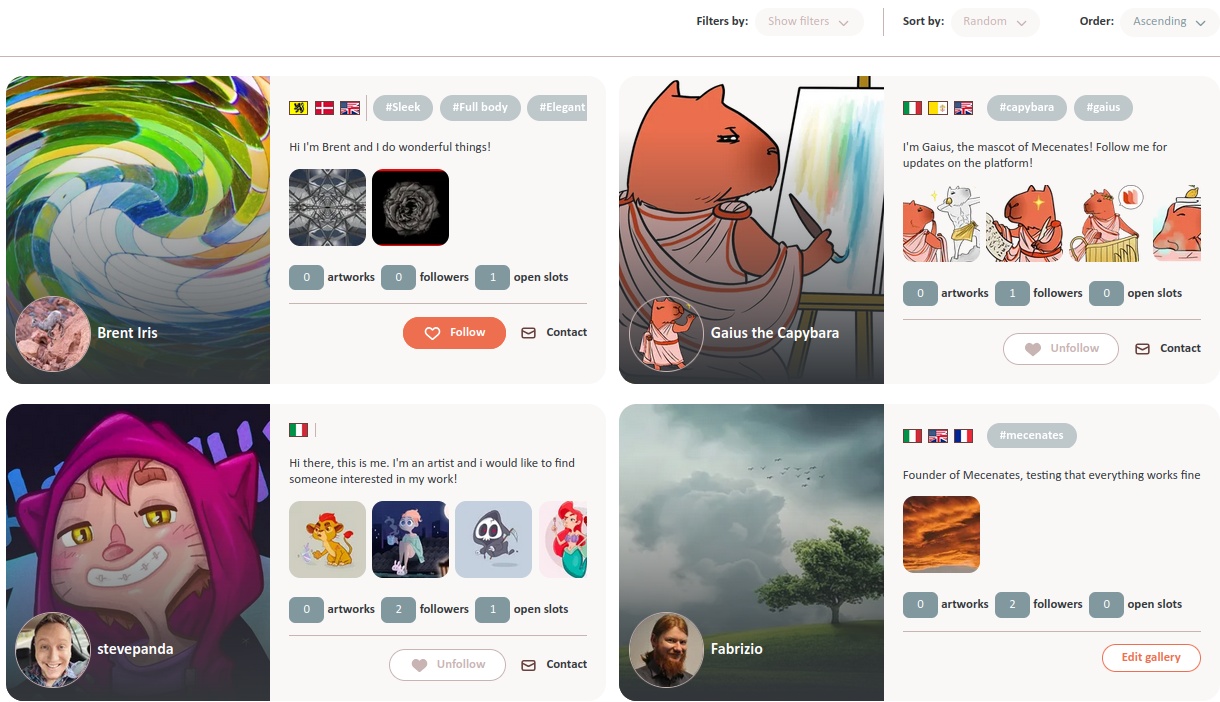
That is the gist of it. Feel free to explore the website, click on the menu on the left to get help about specific topics, and contact our support if something is not clear.
Thank you for visiting Mecenates and for supporting art and artists.
Early Access
Free
As long as we are in Early Access version, Mecenates is completely free to use for everybody! In practice, this means that you can buy as many Denarii as you want for free, since Denarii are the only way that we get money to support the website.
When the Early Access ends and we launch the final version of Mecenates, buying Denarii will not be free anymore, and all accounts will be reset to 10 Denarii. Note that Denarii are an in-app currency, not a cryptocurrency, and as such has no valuation and cannot be exchanged or sold except by buying the services of the Mecenates website.
Public
Mecenates is open to everyone, artists and mecenates alike! Please make an account, use the website, and let us know what works and doesn't work for you at [email protected]! Everything you need to prosper as an artist and to support artists as a mecenate should be already be up and running!
Early Access
As great as Mecenates is, the platform is still in development and may contain bugs. We are also working on more functionalities for our artists and mecenates, such as a calendar to track commissions and badges to be awarded for supporting art and artists. This will take a few more months, so please be patient and let us know if something does not work.
- If you find bugs and errors in the website, please let us know at [email protected].
- If you have feedback (positive or negative!) on how the website works, or just general thoughts and ideas, please let us know at [email protected]. We promise to read and cherish every single email!
In general, thank you so much to be here with us supporting art and our wonderful community of artists and mecenates! We have been working at this project for years, and your support in any form means the world to us!
Registration & Login
To have access to all the features of the Mecenates website, such as the messaging system, you need to register a new account.
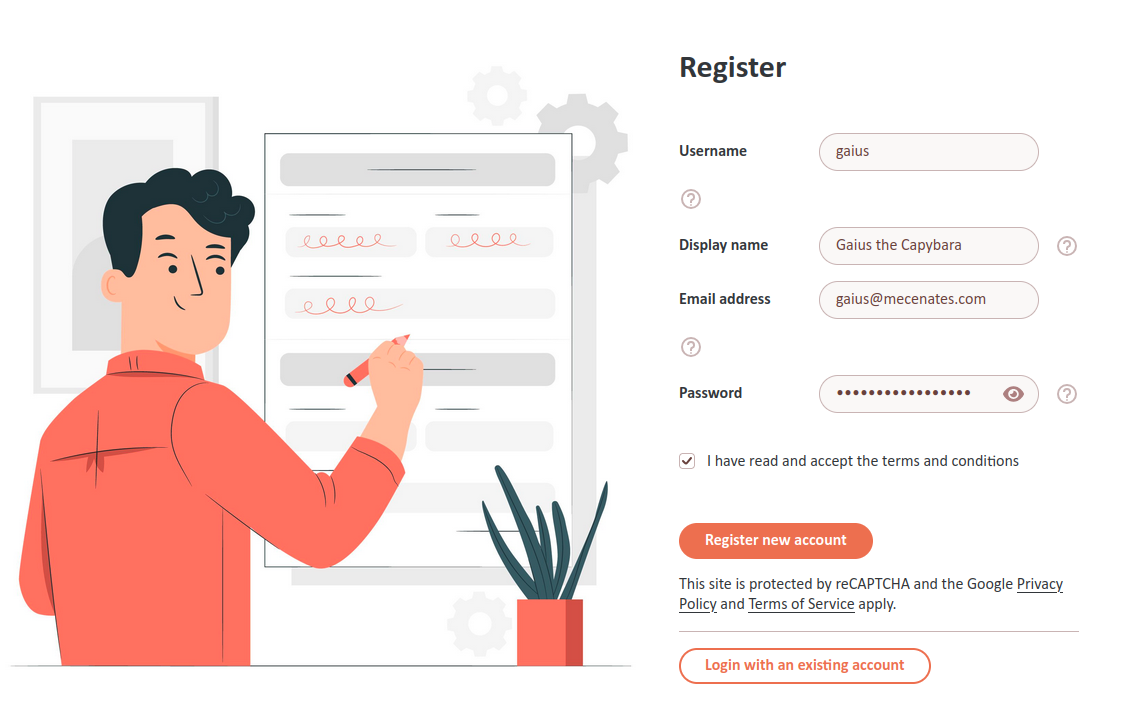
Register by going to the registration page and providing:
Username: this is the name that the website will use to identify you. It must be from 3 to 25 characters long.
if you open an artist gallery, its address will be www.mecenates.com/[username], for instance if your username is Fabrizio your gallery will be located at www.mecenates.com/fabrizio.
IMPORTANT:your username cannot be changed later without registering a brand new account!
Display Name: this is the name that you will use on the website. It can be changed later from the settings page.
E-Mail Address: this is the email address that we will use to contact you. We will not publish it on your gallery or make it public. You will need to confirm the email address by clicking on a confirmation email before you can use the website, so make sure you have access to the email account.
IMPORTANT:your e-mail address cannot be changed later without registering a brand new account!
Password: this is your password to access the website. It must be from 8 to 40 characters long and it must contain at least an uppercase letter, a lowercase letter, a number, and a special character among !@_#$%^&*. It can be changed later from the settings page.
Terms & Conditions: before registering an account, please read and familiarize with our terms and conditions and click on this checkbox to confirm that you did so and you accept them in full.
Reset Your Password
If you forgot your password or find you cannot login with it anymore, you can follow this procedure to choose a new one.
First of all, go to the login page and click on "Forgot your password?" under the Password field:
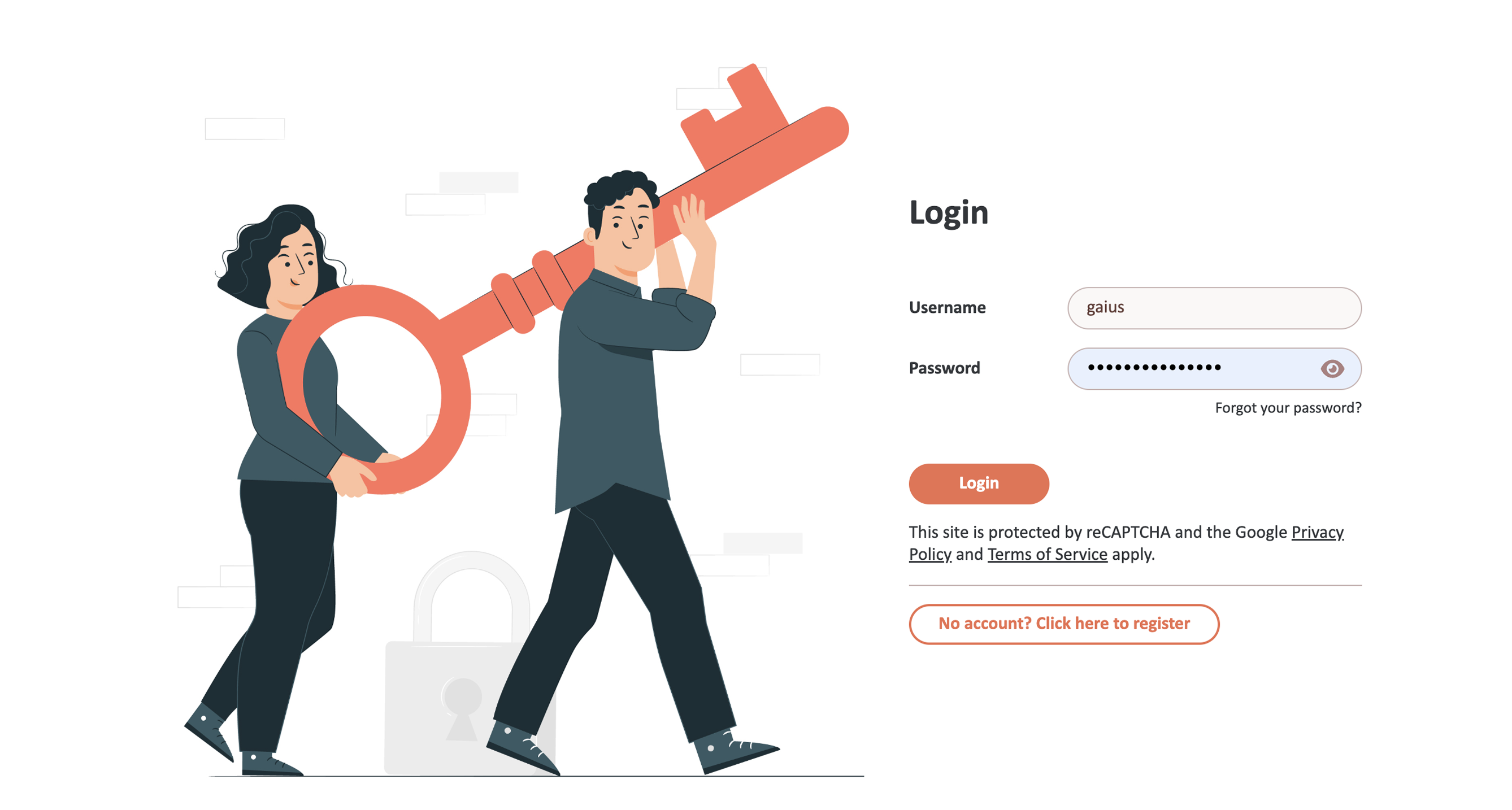
This form will open:
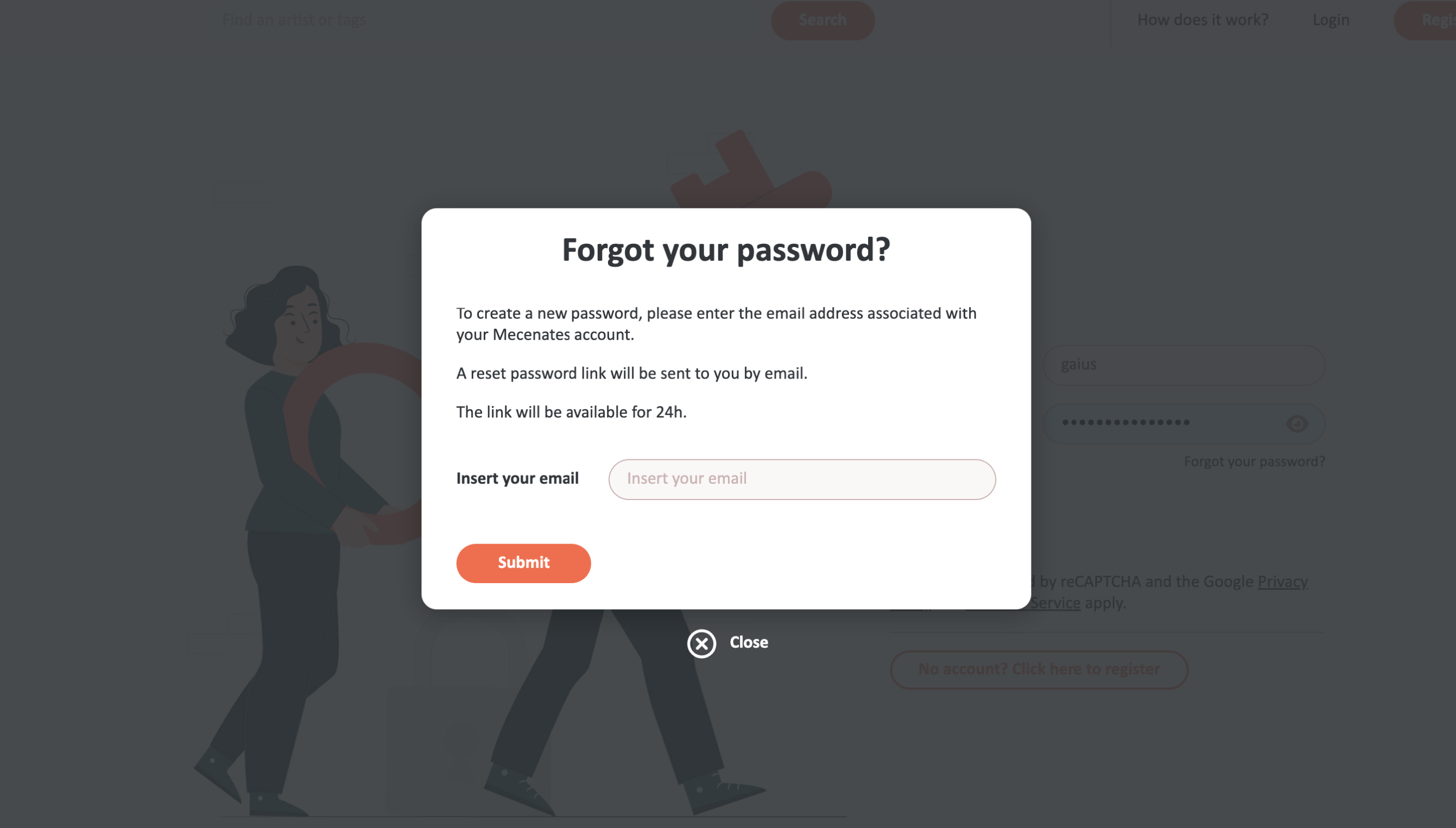
Type your email address in the field and click the "Submit" button. The email address must be the same you used to create your Mecenates account.
In a few minutes, you will receive at that address an email that looks like this:
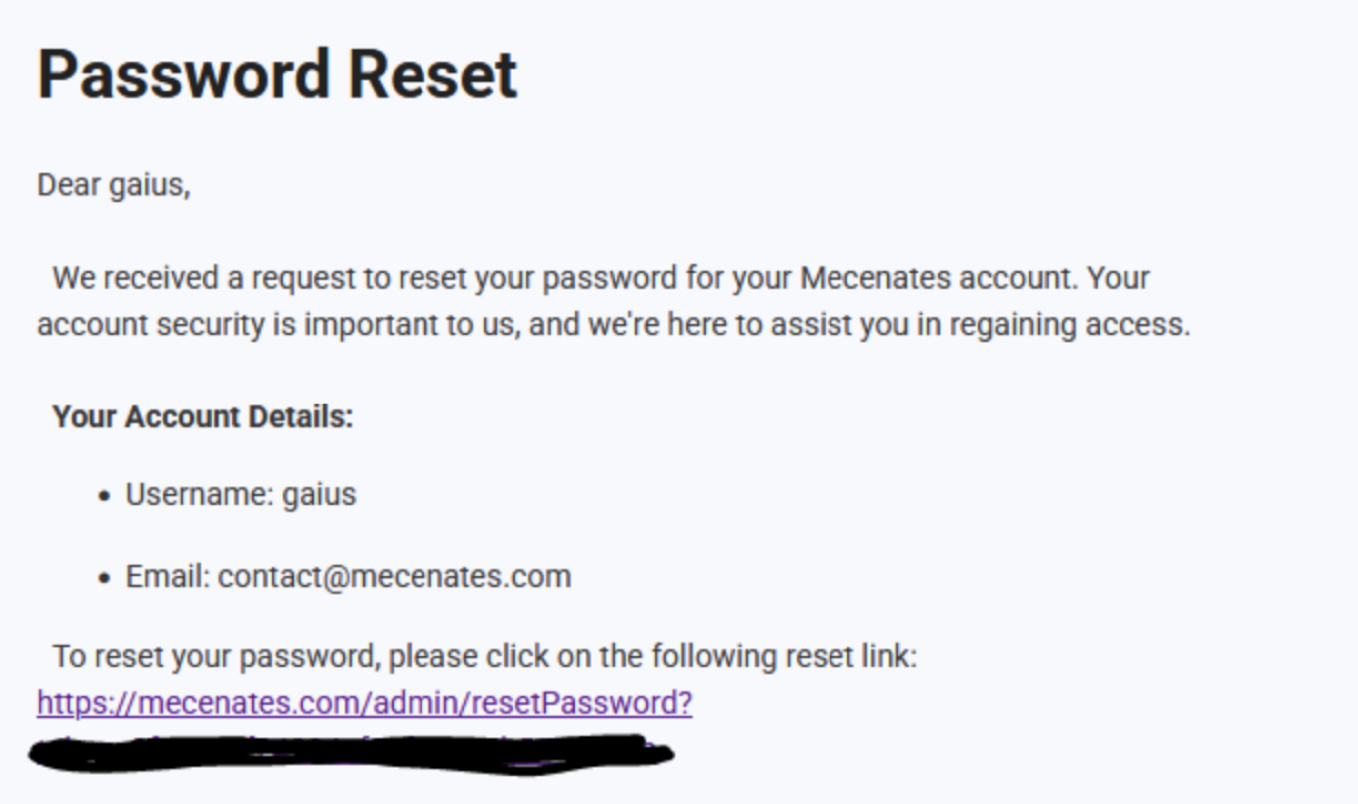
Click on the link to go to the password reset form. Note that the link is unique to you and will be available only for 24 hours; after that, you'll have to start the procedure from the beginning.
By clicking on the link in the email, you will open this page in your browser:
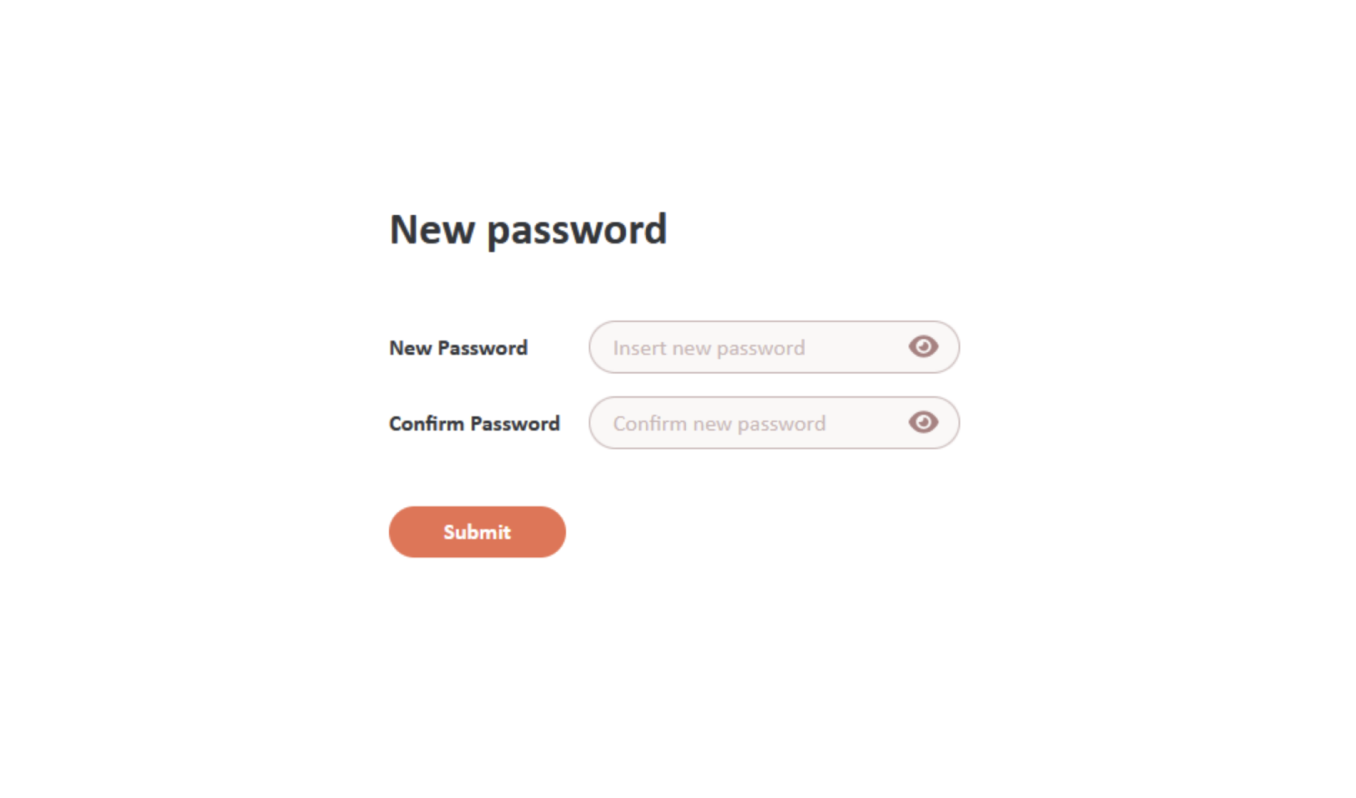
You need to create a new password for your account. The new password must be from 8 to 40 characters long and include uppercase and lowercase letters, numbers, and special characters included in this list: !@_#$%^&*. Once you have chosen the new password, type it both in the "New Password" and in the "Confirm Password" fields. The password must be the same in both fields. Then, click on the "Submit" button.
That's it! Now you can go back to the login page and login with your new password!
Notification Settings
By clicking on your icon on the top right on the page and clicking Settings, you enter the Settings page.
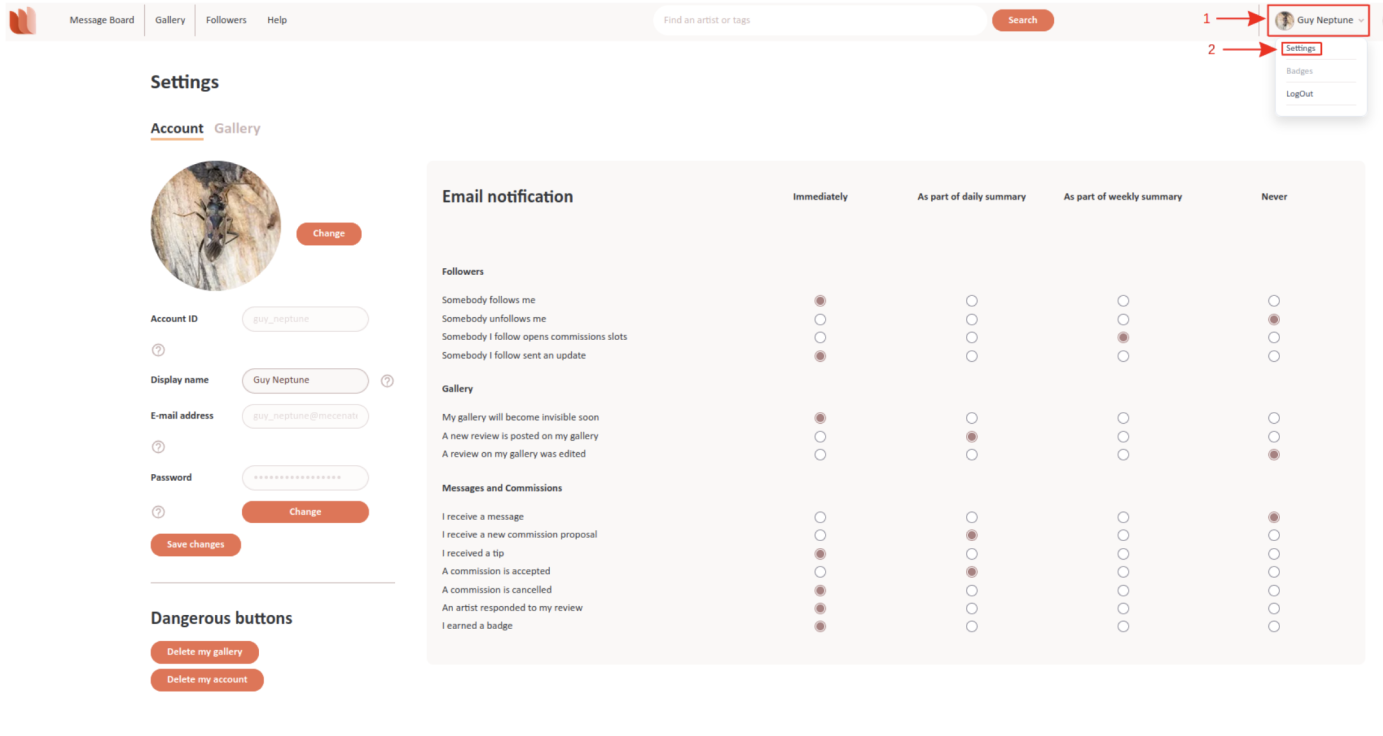
The Settings page has two tabs: Account and Gallery. The Account settings are described here, while the Gallery settings are described on the Gallery Settings help page.
Account Settings:
Picture: Click the Change button to update your profile picture.Username: This cannot be changed.Display Name: This is the name visible to others. Click the text field to edit it, then click Save changes.Email Address: This cannot be changed.Password: Click the Change button to update your password.
Dangerous Buttons:
Delete my gallery: This option appears only if you have a gallery. Deleting it is irreversible, but commissions and denarii remain.Delete my account: This permanently removes your account and denarii. Your email and username become available again after a short delay.
Email Notification Settings:
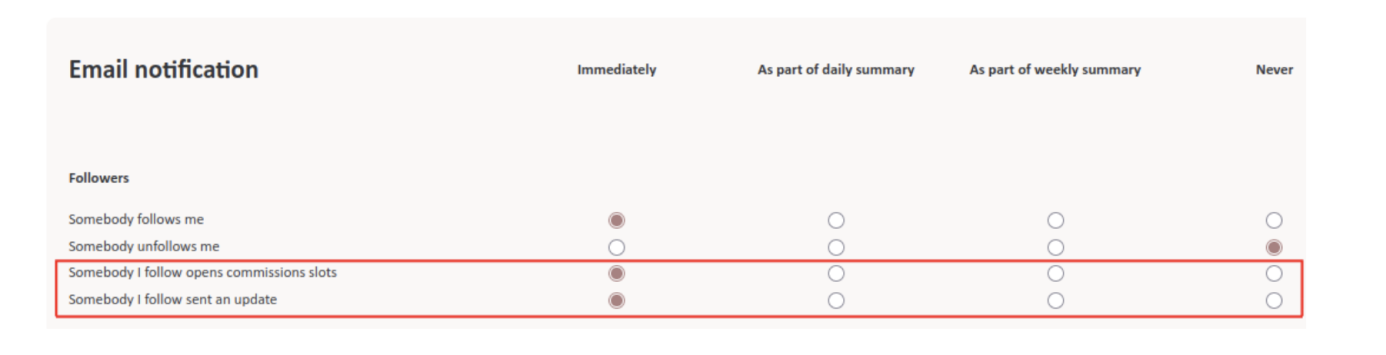
You can control how often we send you email notifications for different events:Immediately: Receive an email as soon as the event occurs.Daily Summary: A summary email at the end of the day.Weekly Summary: A summary email at the end of the week.Never: No email notifications for that event.
Notification Settings:
Some events apply to all users, while others apply only to artists.Available to All Users:Somebody I follow opens commission slots.Somebody I follow sends an update.I receive a message.A commission is accepted.A commission is cancelled.An artist responds to my review.Available Only to Artists:Somebody follows me.Somebody unfollows me.My gallery will become invisible soon.A new review is posted on my gallery.I receive a new commission proposal.
Open Commissions:
I receive open commission invitations and updates: As an artist, you receive an email when a creator invites you to an open commission or when the commission you are interested in has updates.My open commission invitation is answered: As the creator of an open commission, you receive an email when an artist you invited accepts or declines your invitation.Emails about open commissions include a link that opens the commission directly.
See Your Messages
Both messages and commissions will appear in your Message Board. To access the Message Board, click on the “Message Board” button on the left of the top bar:

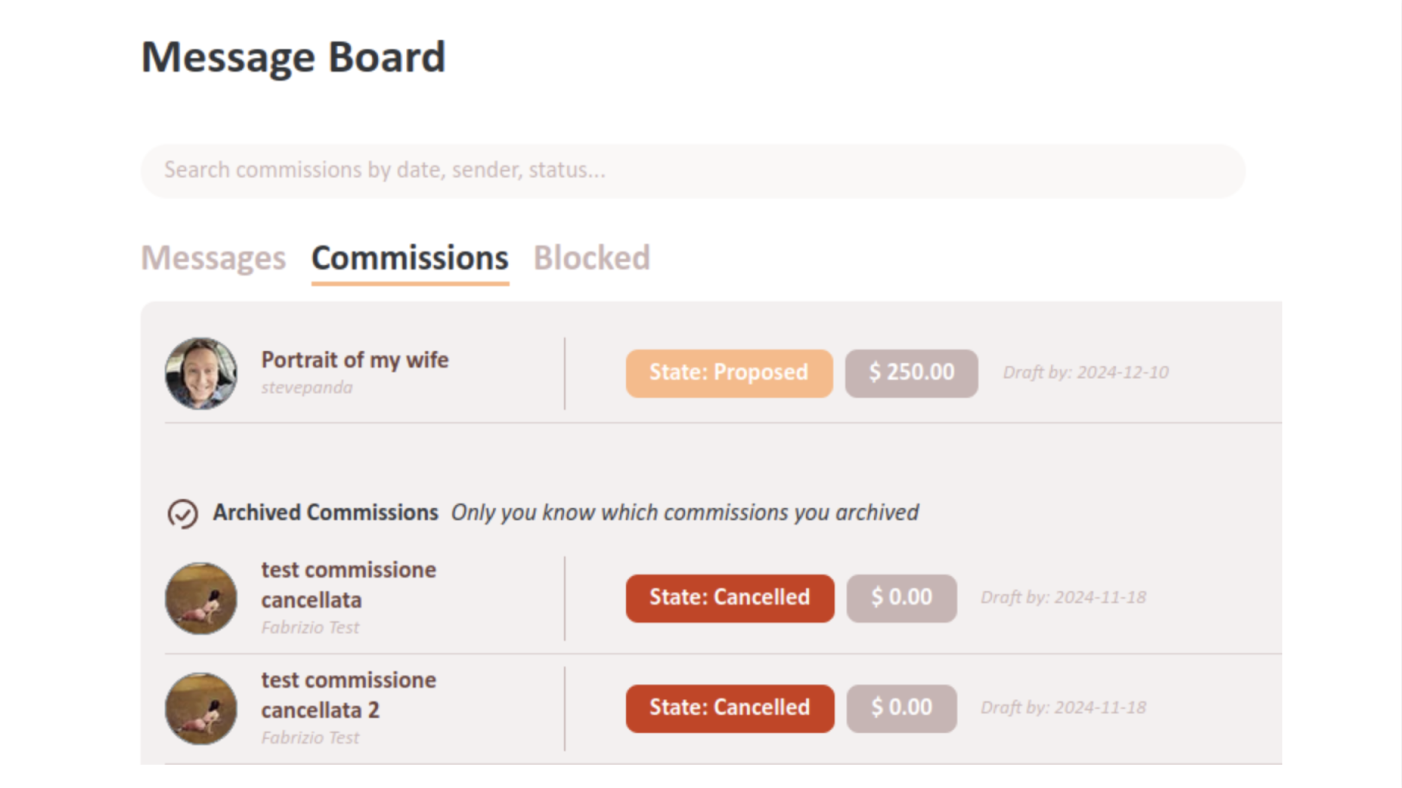
Commissions Tab
The Commissions tab includes all your commission-related conversations, whether active or archived.
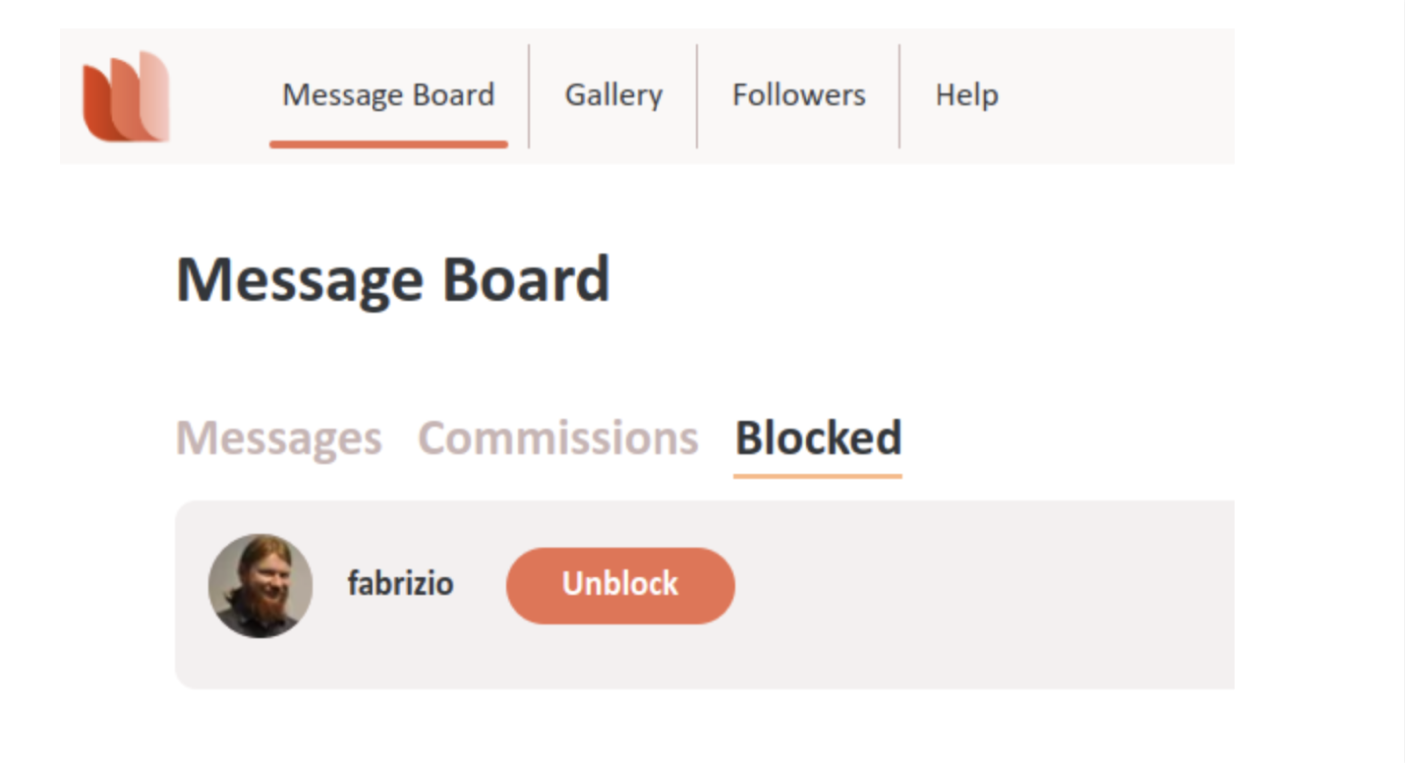
Blocked Tab
The Blocked tabs includes the conversations with users you blocked.
Messages Tab
The Messages tab includes all your non-commission conversations with other users.
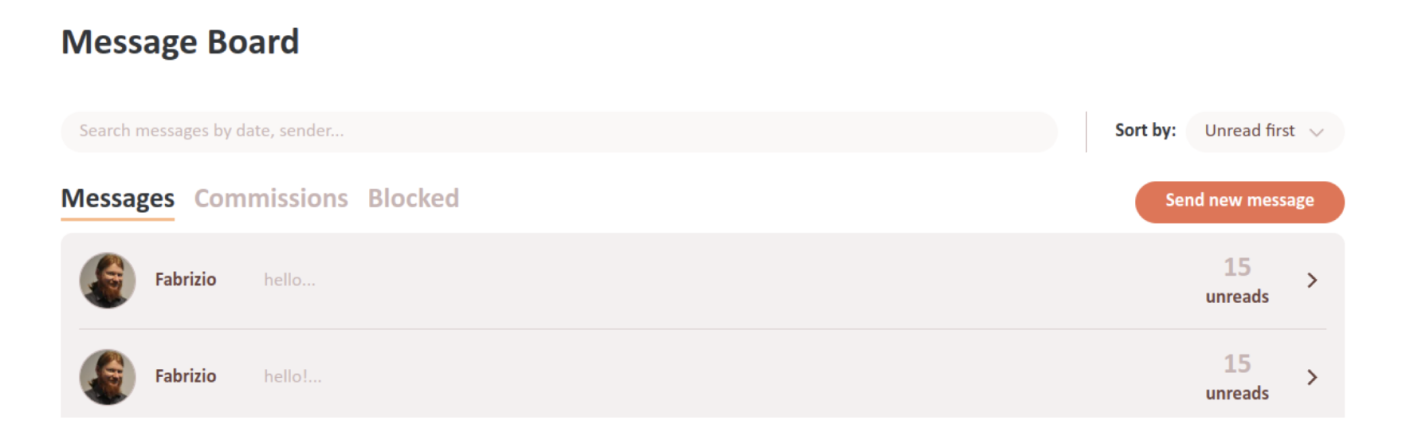
Above the tabs, you can see the search bar for messages and the relative filters and sorting options. Finally, the “Send new message” allows you to send a message to any user whose username you know. By clicking on one of the rows with a user's portrait and name, you will open the conversation with that user.
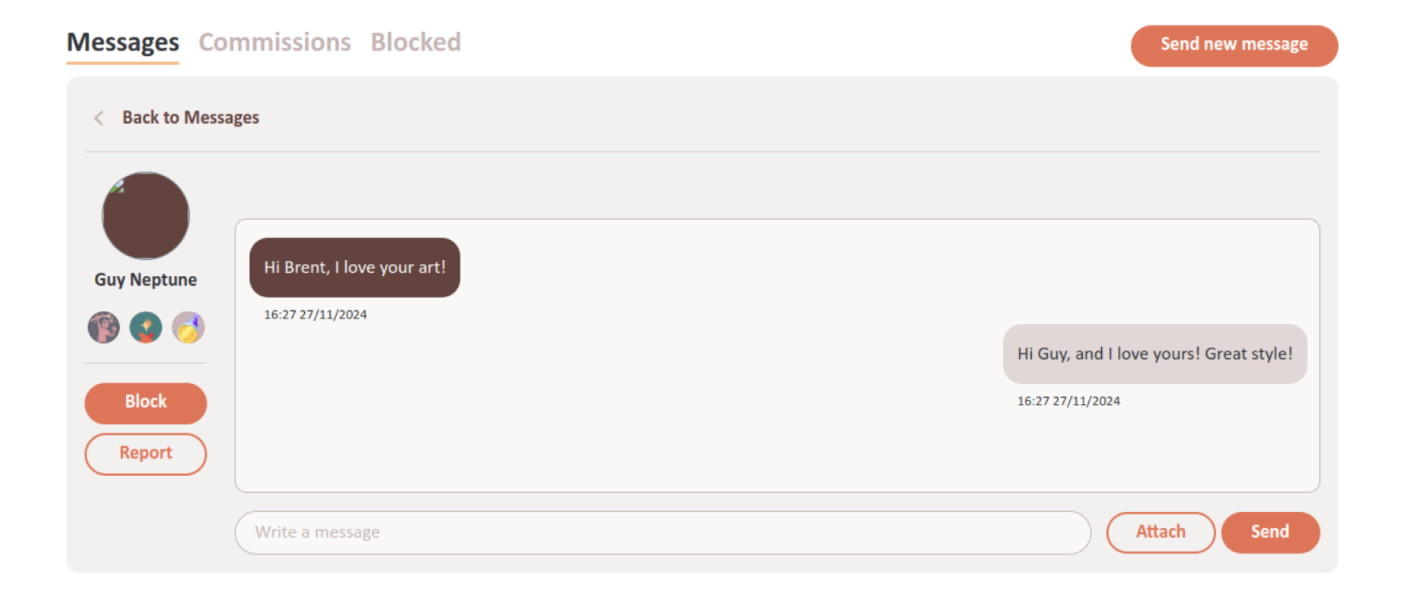
Here you can see on the left the user's portrait and display name. Some users also have a small subtitle under their name: these are users with special roles such as moderators and administrators. In the big window you can see your conversation history with the user. Their messages will be in darker bubbles aligned to the left, and yours will be in lighter bubbles aligned to the right. You can write them by using the “Write a message” field below and then pressing Enter or clicking the “Send” button. The “Attach” button allows you to attach images to your conversation as well. Under the user's name you can see the “Block” and “Report” buttons.
Use the Block button to block the user. Their messages and communications will move to the Blocked tab, and you won't receive notifications for their messages.
NOTE:If the user is already blocked by you, you will see the Unblock button instead. You can use this button to remove the block from the user. By doing so, the conversations with them will go back to the Messages tab.
Use the Report button to report the user to us. Do this only if you think that the user violated our Terms and Conditions. You will be able to write the reason of the reporting and, if you want, to also block the user. We will read your report and behave accordingly.
Send Updates to Your Followers
Artists (and only artists) can be followed by any user (both artists and mecenates). You can send updates to your users to let them know when you have or are about to open new commission slots, when you want to tell them about some new initiative or artwork you love, or just to say hi.
To see your followers, click on the Followers button on the top bar and then on the Your followers tab on the page that opens.
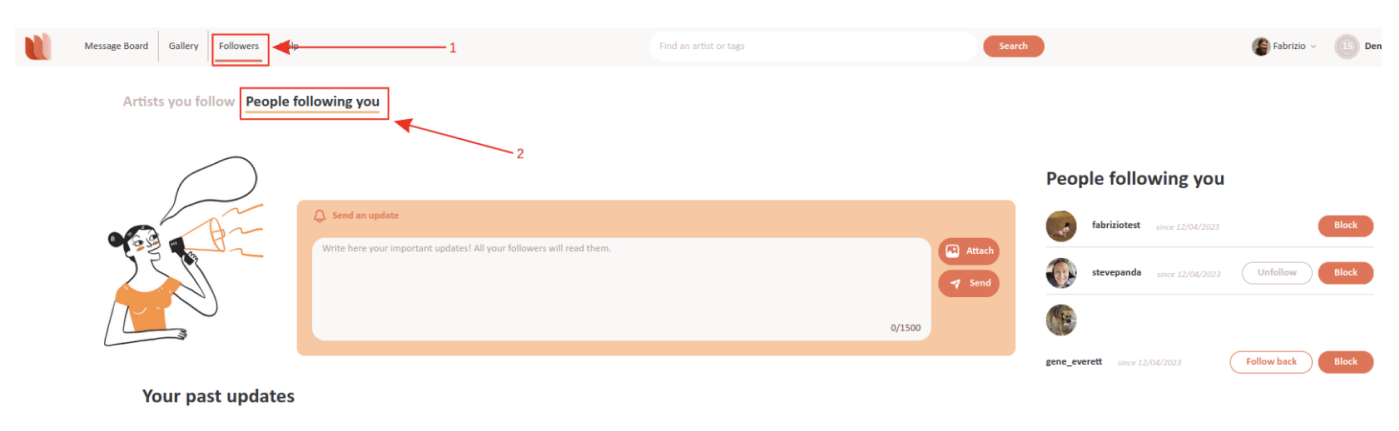
You will see the list of your followers on the right. You can decide to follow back those that are artists, unfollow those you already follow, or block any of them. Blocked users won't be able to see your updates or contact you.
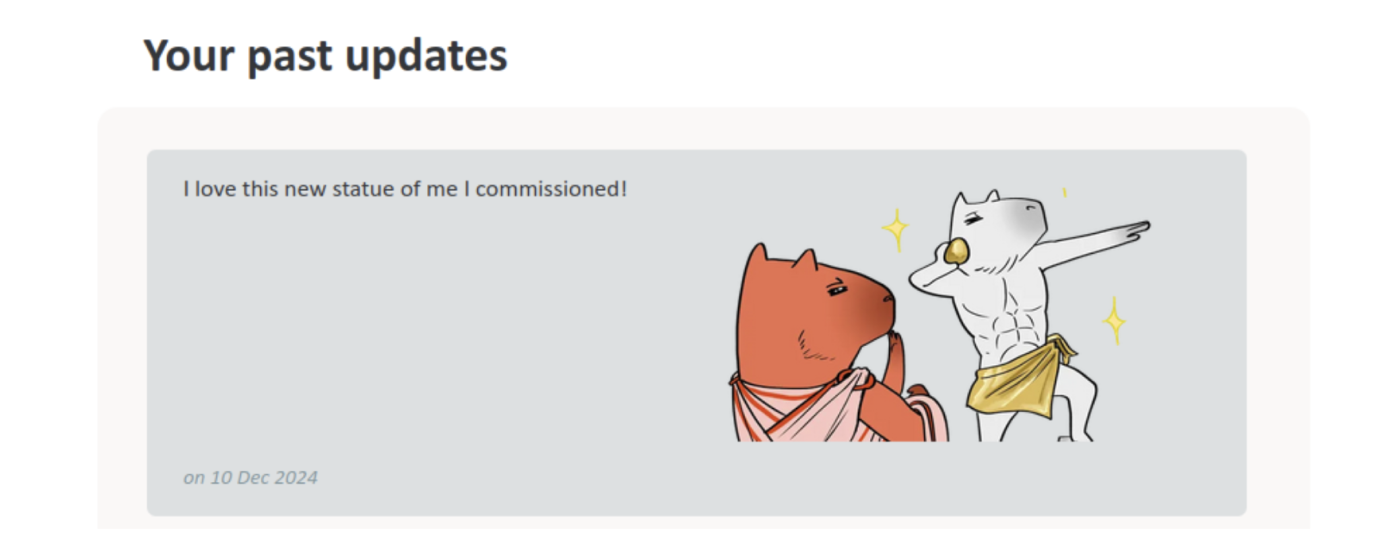
On the left you can see the "Send an update" form on the top and the list of the previous updates you sent just below.
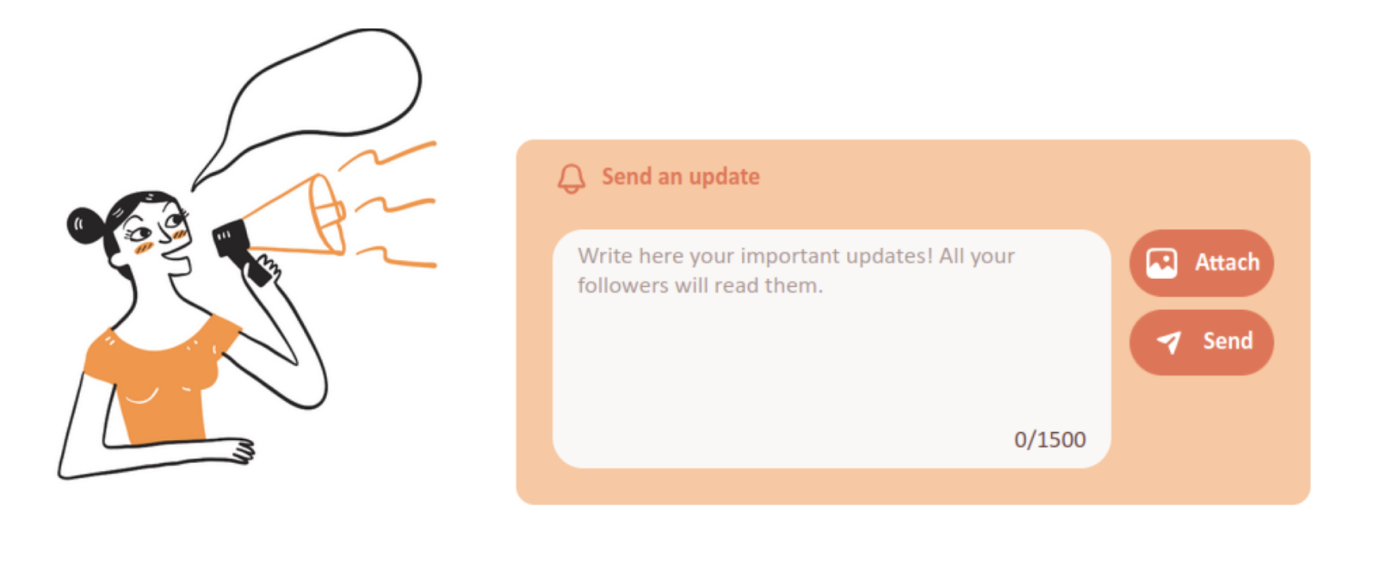
To send an update to your followers, write it in the Send an update form and click Send. You can also attach up to one image to the update; it will be sent as part of the update (to the right of the text).
NOTE:your followers may have activate email notifications for when you send an update, in which case we'll notify them of your update.
Find Artists
From our homepage you can see artists' artworks and choose the ones that you love the most to follow and commission!
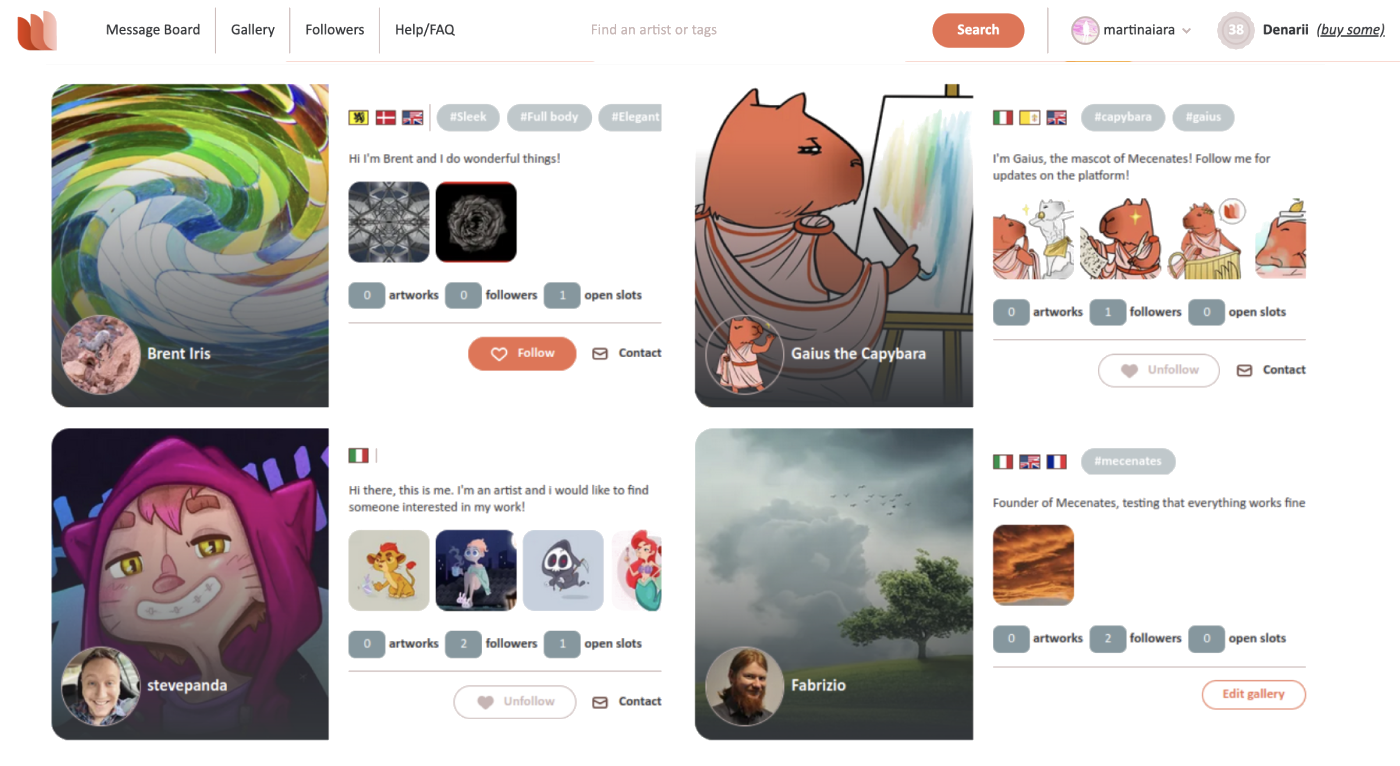
Start writing something in the search bar above (such as “fantasy” or “portrait”) and our autocomplete will guide you towards the best tags or the name of the artist you are looking for. When you have added enough tags, press Enter and the corresponding galleries will appear below.

To improve your search results you can use one or more Filters and sort the results however you want with the Sorting options.
Filters
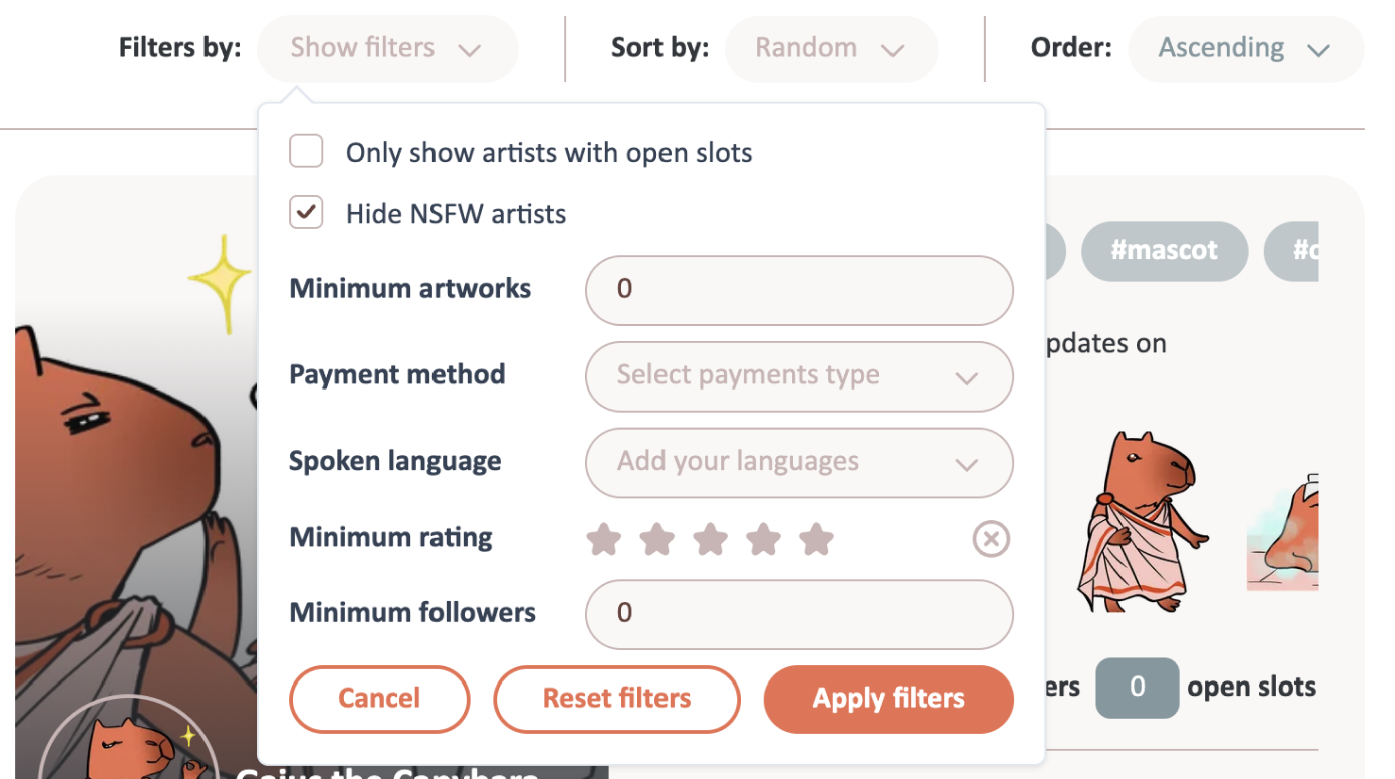
The available Filters are:Commission status: Filter artists by their commission status: show only galleries of artists that are open to commissions, on the waitlist, or with commissions closed. This filter is not active by default.Hide NSFW artists: Show only galleries of artists that do not have any NSFW art. This filter is active by default.Minimum artworks: Show only galleries of artists that have at least that number of artworks.Payment method: Show only galleries of artists that accept at least one of the specified payment methods.Spoken language: Show only galleries of artists that speak at least one of the specified languages.Minimum rating: Show only galleries of artists that have at least that number of stars in their rating.Minimum followers: Show only galleries of artists that have at least that number of followers.
Sorting
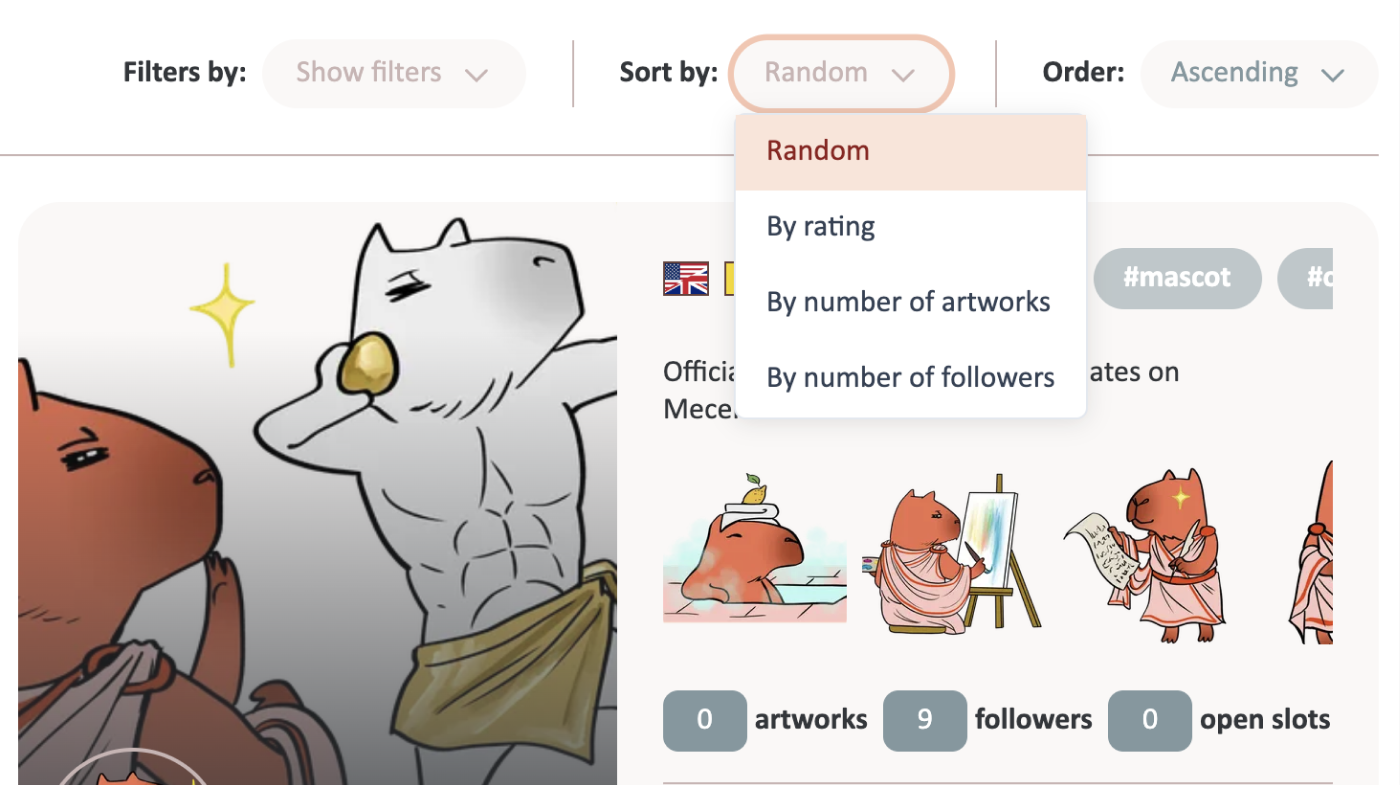
The Sorting options are:Random: The results are shown in random order. This is the default option.By rating: The results are shown ordered by rating.By number of artworks: The results are shown ordered by number of artworks.By number of followers: The results are shown ordered by number of followers.Additionally, you can decide whether the sorting is in ascending or descending order (except for random sorting).
Follow Artists
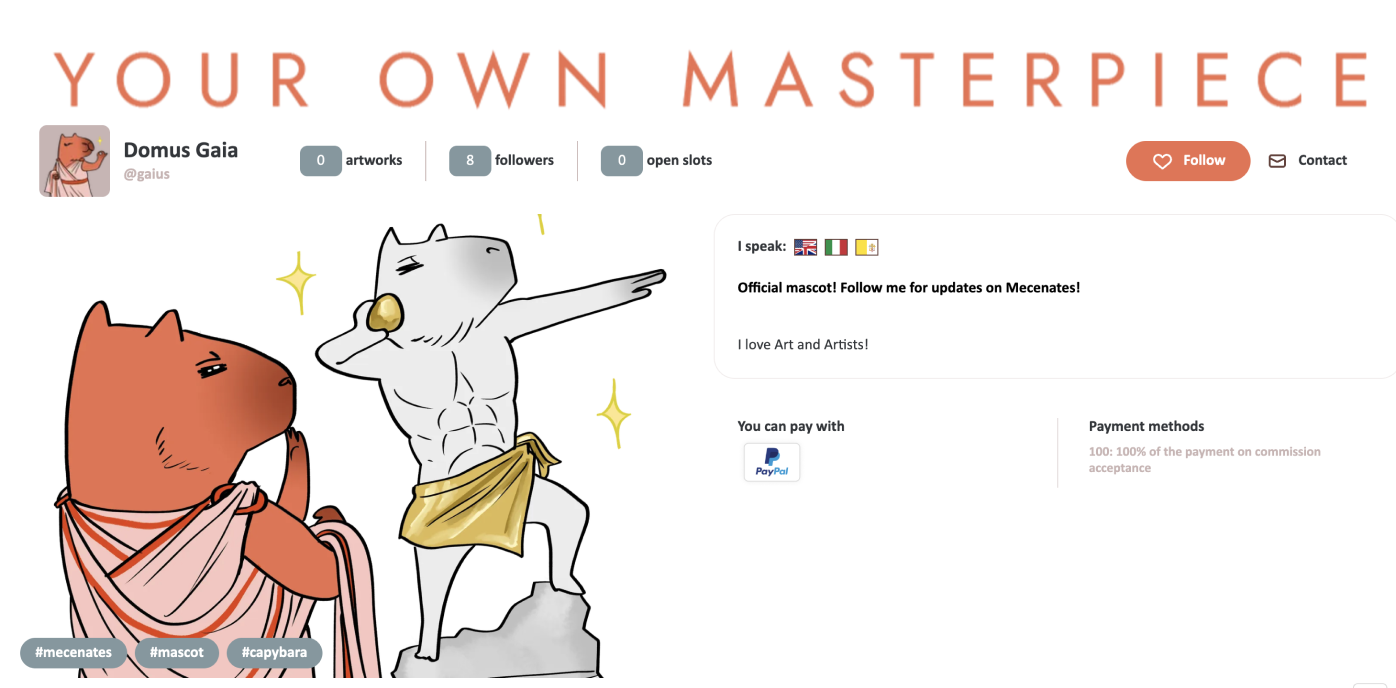
If you like an artist's art, you can follow them by clicking the Follow button on their gallery…
...or in the minigallery when they appear on search results.
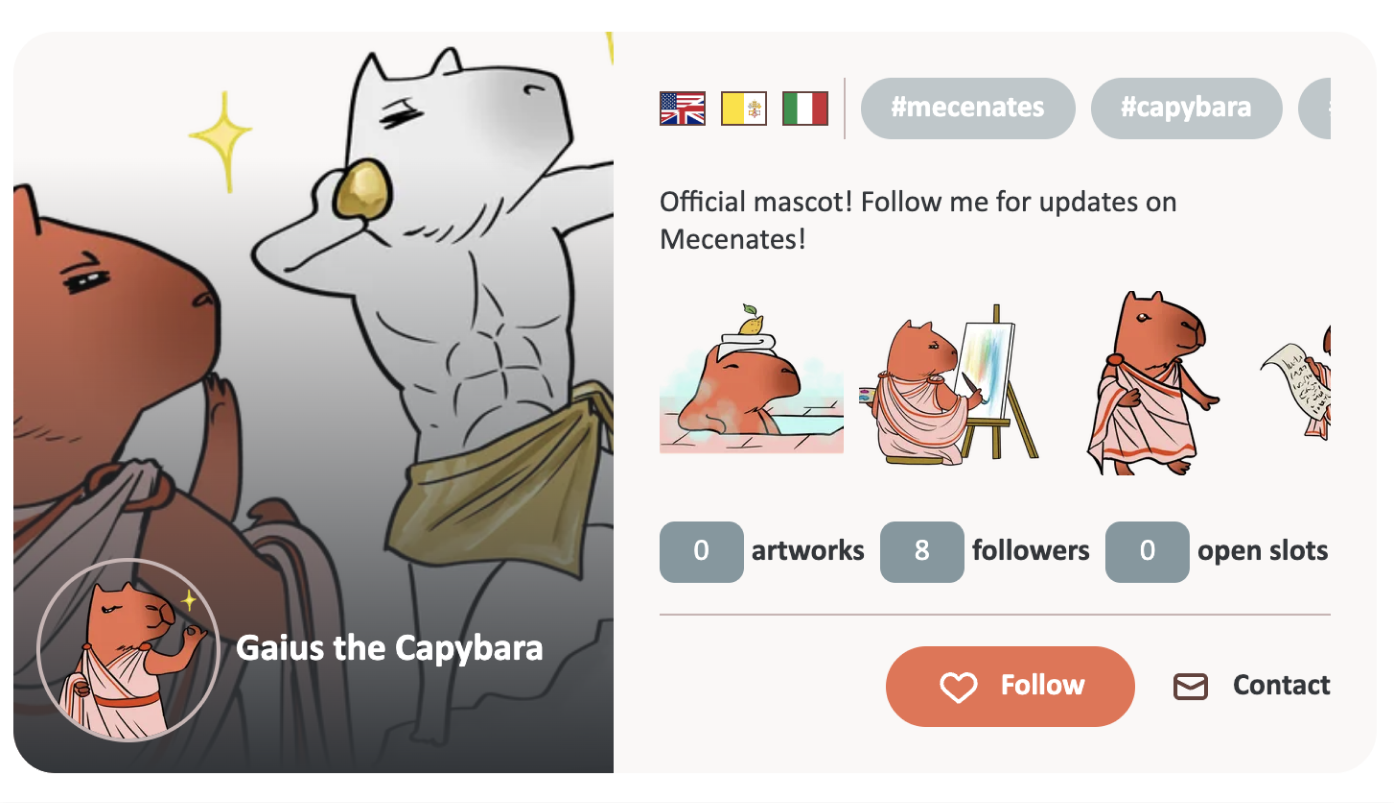
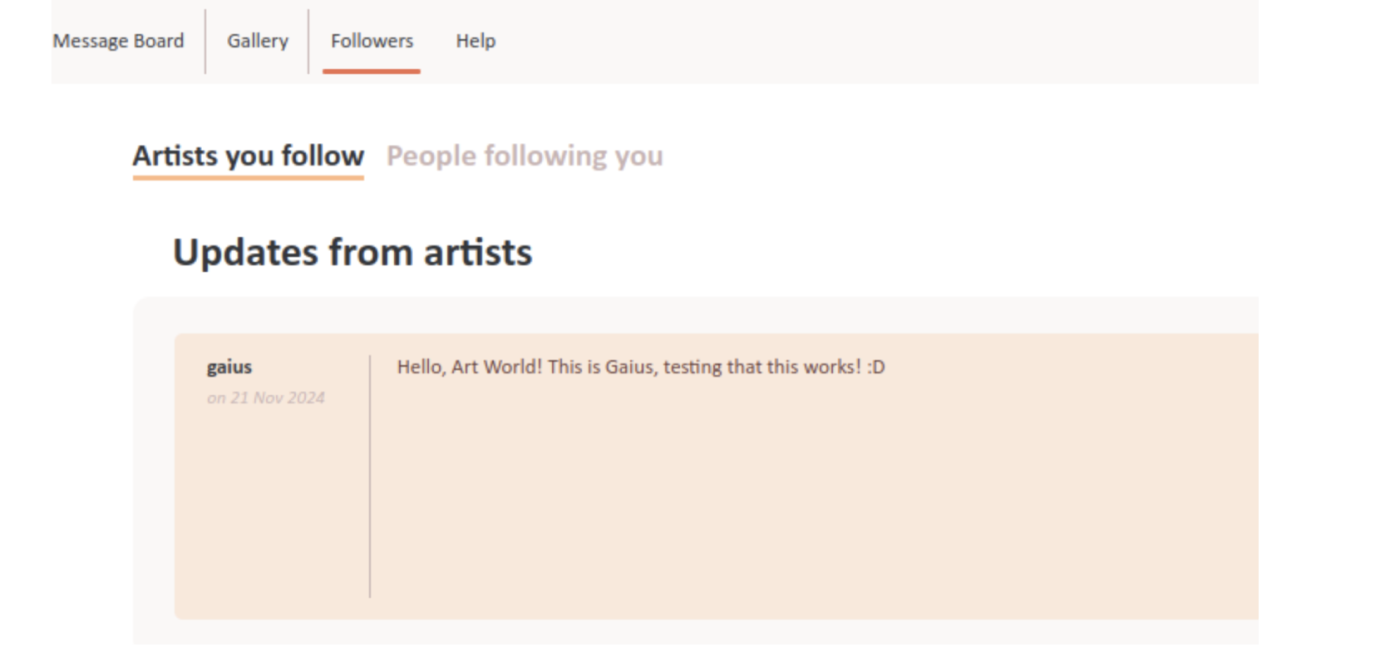
When you follow someone, you will see their updates in the followers page.
Also, you can set your notifications in the settings page so that you are the first to know when they send an update or open commission slots!
If you change your mind about following someone, just click Unfollow in the gallery or minigallery where you followed them or beside their username on the followers page.

Contact Artists
You can send messages to any user by using our messaging system! To contact an artist, click on the Contact button on their gallery.
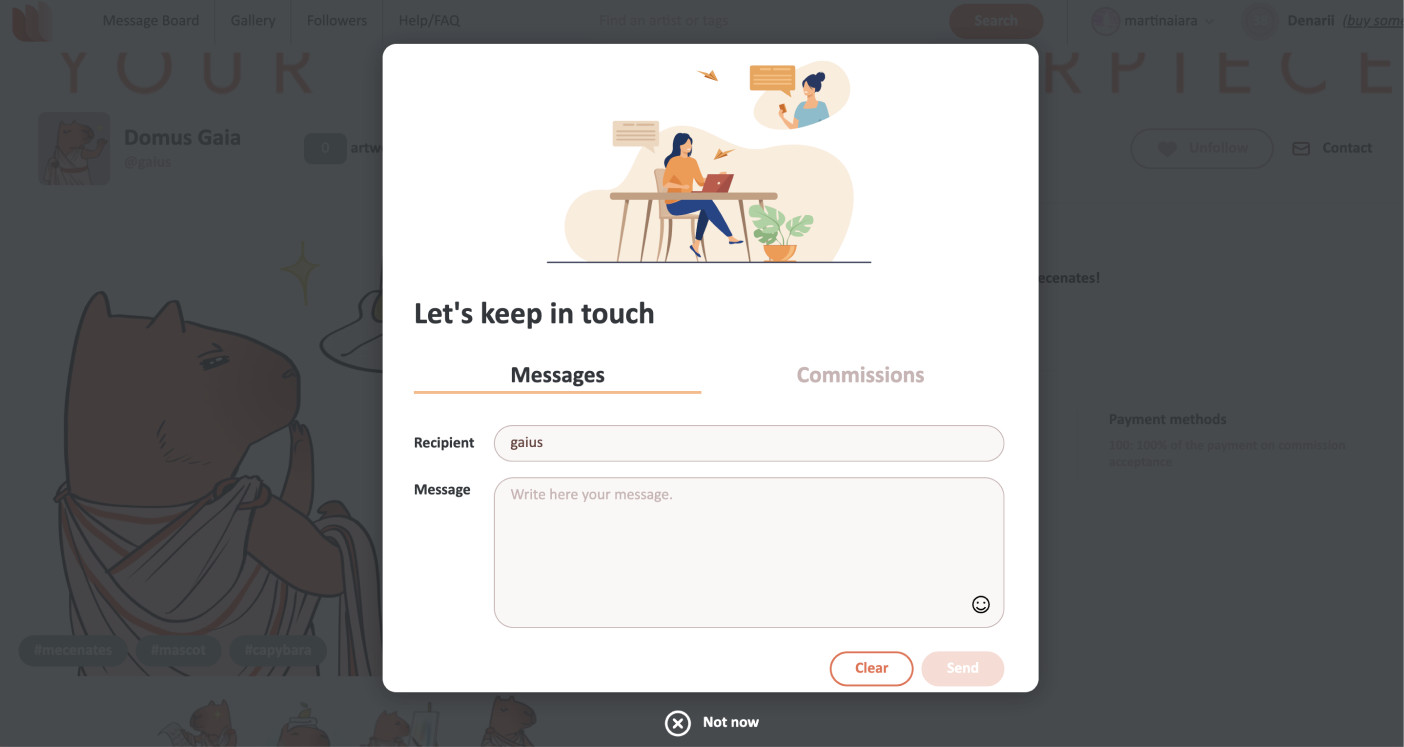
Then you can choose to just send a message or to propose a commission by clicking on the appropriate tab.
- To see your messages follow our guide.
- To see how to propose a commission click here.
Review an Artist
IMPORTANT:You can review an artist ONLY AFTER a commission, for which you are the mecenate, has been accepted by the artist.
You will be able to leave up to one review for each accepted commission.
You may want to post your review as soon as the artist accepts the commission to speak of your experience contacting the artist and agreeing on the commission details, or you may want to wait for the commission to be completed and delivered to speak about the full experience. In both cases, you can always edit the review later.
You will see the “Write review” button on the bottom right of the commission conversation:
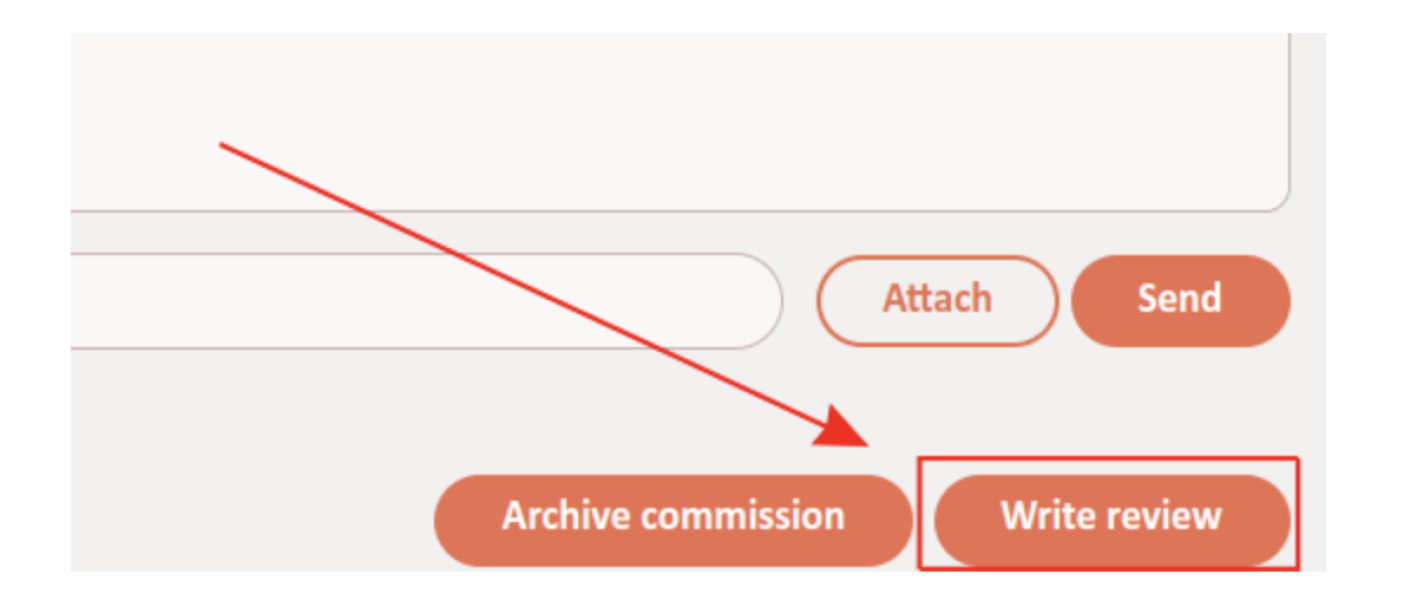
By clicking on it you will open the “Write a review!” form:
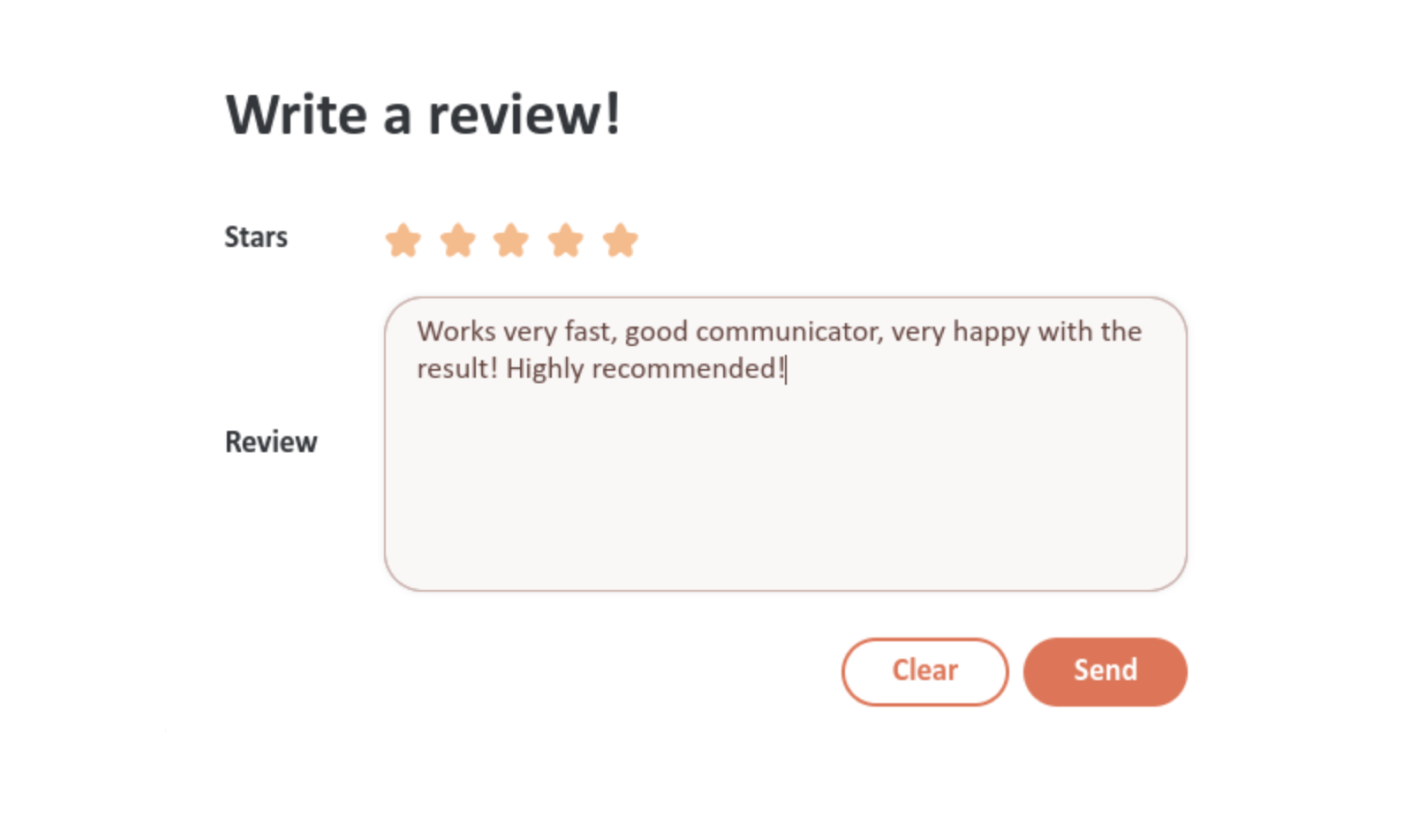
Stars: This field is for your rating from 0 to 5 stars. If you don't select it, we'll keep it at 5 (to prevent people from giving unwanted harsh reviews).Review: This field is where you write your actual review. You can speak about the experience commissioning the artist and about the result. In doubt, remember that being a little nicer is better than being a little harsher!
You can click on the “Clear” button to clear your review at any time. When you are happy with your review, click on the “Send” button to send it.
Your review will appear at the bottom of the artist's gallery for everyone to see:
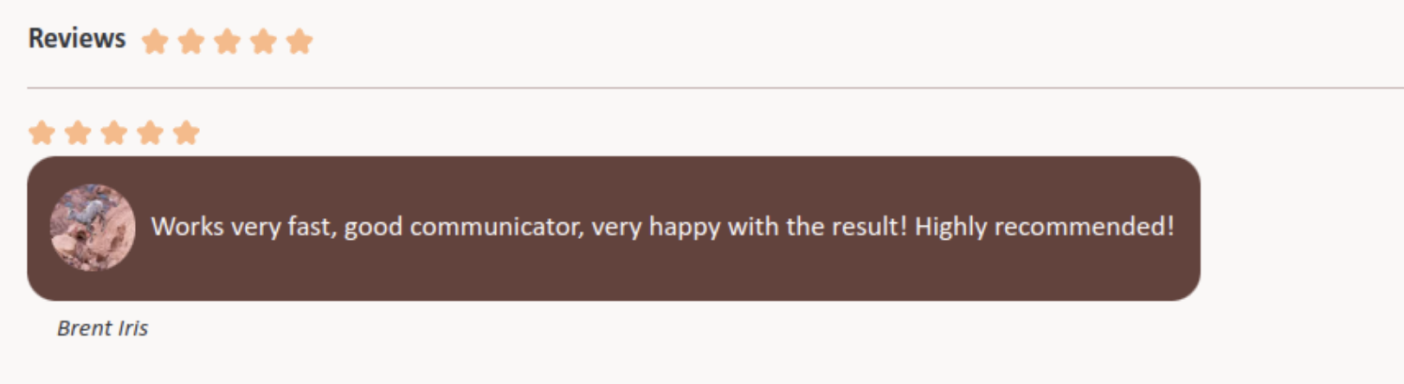
The artist will be able to respond to your review.
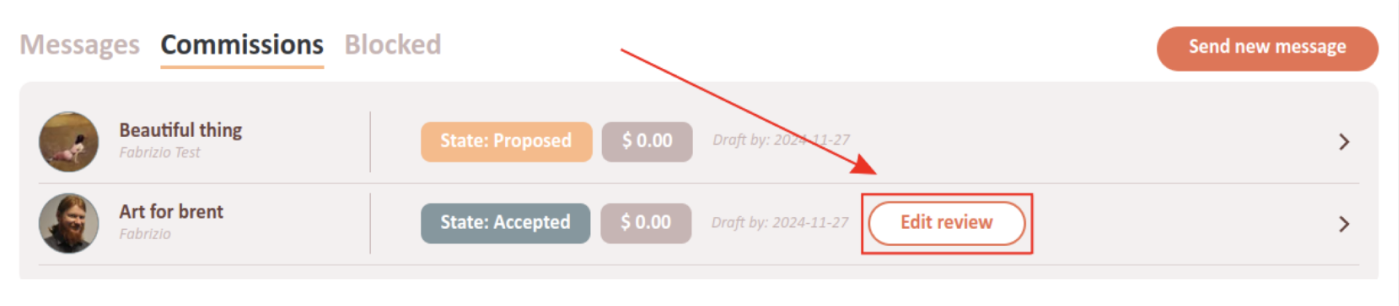
If you want to edit your review, you will find the “Write review” in the commission list has been replaced by “Edit review”. Click on it and you will be able to edit your review using the same form as above.
Create & Edit Your Gallery
Any user of the Mecenates website is considered a mecenate and can contact artists and propose commissions. To become an artist user, you have to create a gallery (it's free, no subscription or credit card required).
You can go to the gallery creation form by clicking on the “Become an artist!” button on the top bar, or going to the settings page and clicking on the “Gallery” tab. In both cases, you will see this message:
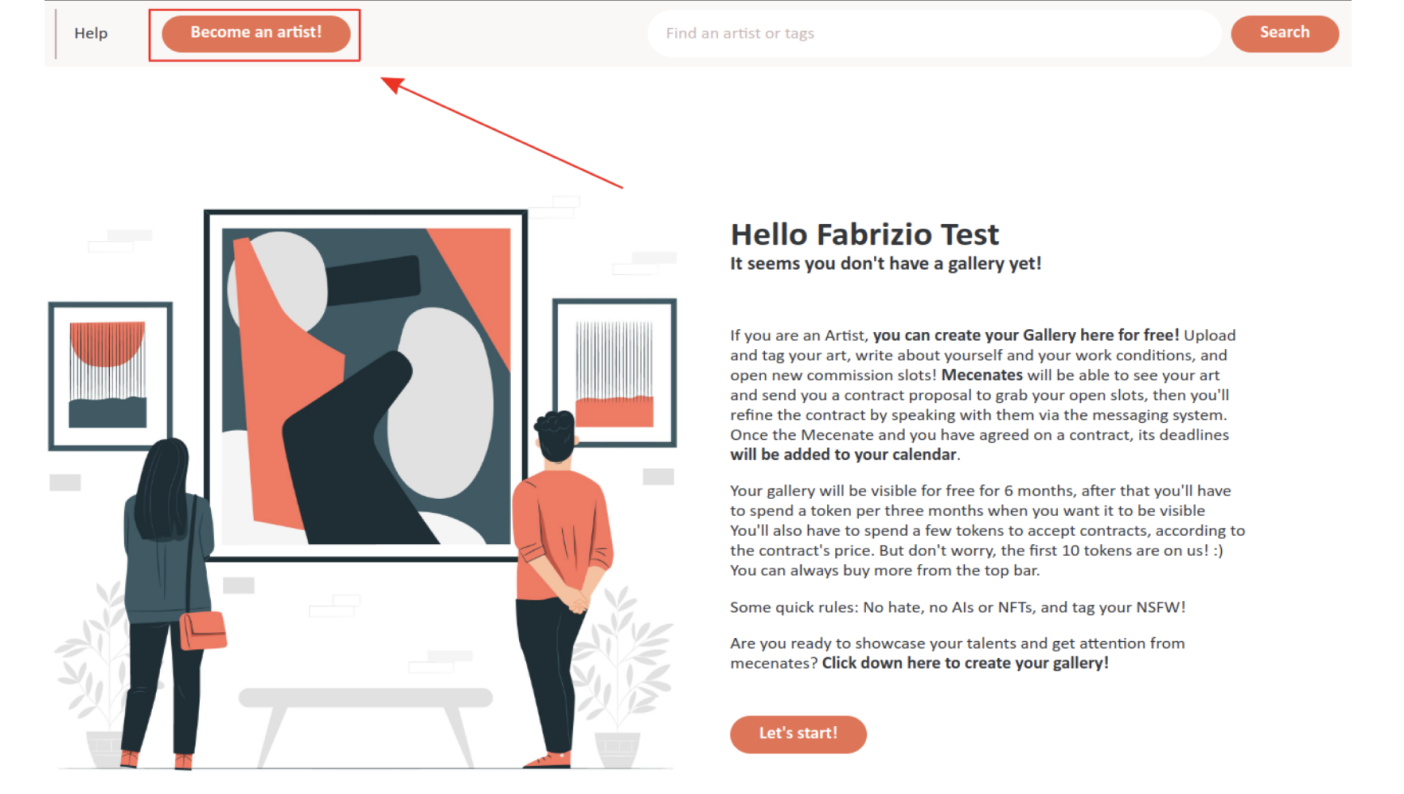
Read the message (and importantly the quick rules!) to get a quick primer on what being an artist means, then click on the “Let's start” button to start creating your gallery!
You will see the Gallery settings page:
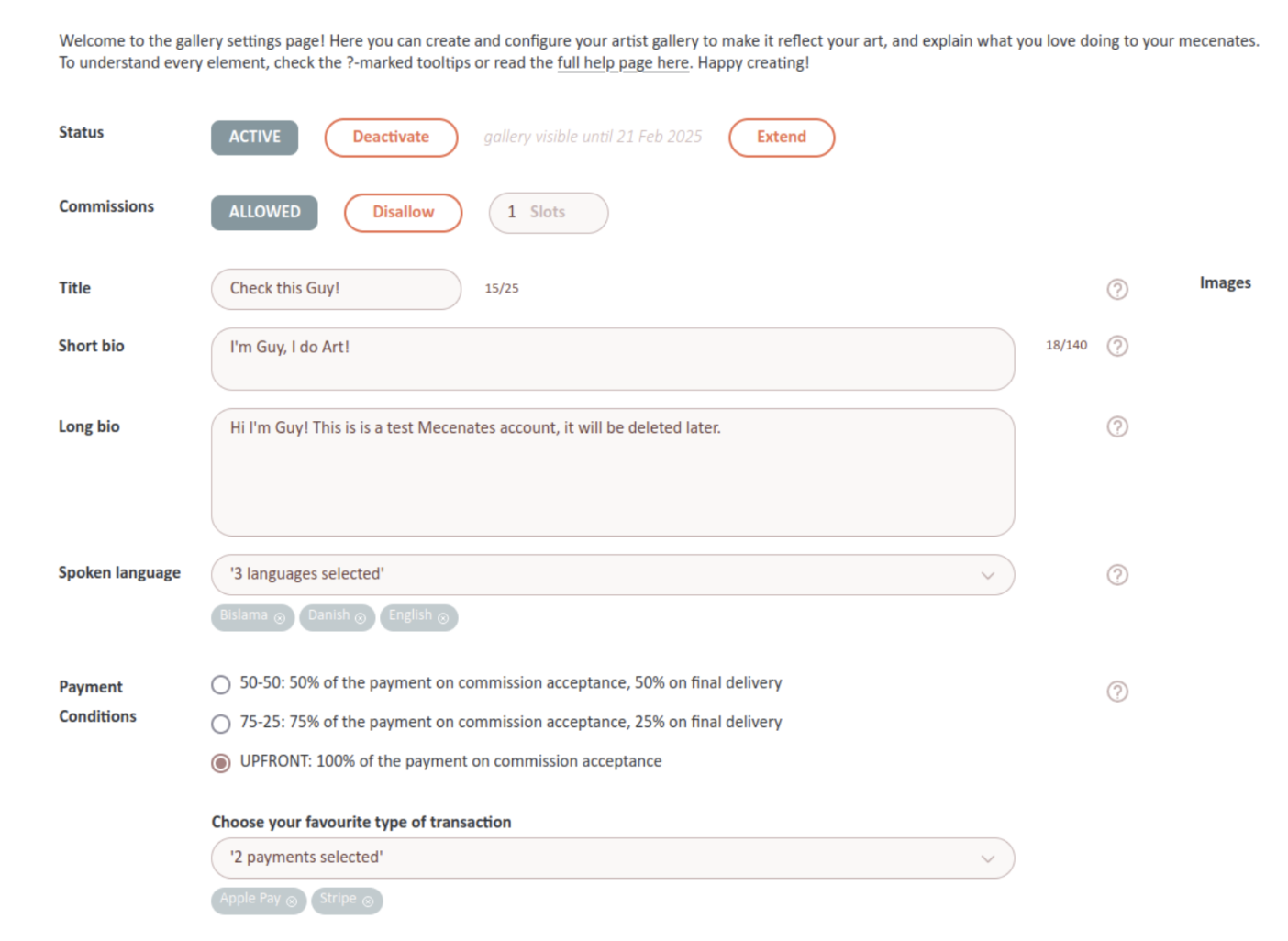
Here is what every field means:
Status
The status of your gallery. If your gallery is active, people will be able to see and interact with it, including sending you commission proposals. If it is deactivated, they won't. Your gallery has an expiry date, seen just right of the status. To prevent abandoned galleries from staying online forever and waste mecenates' time, galleries are deactivated after 3 months of their creation.
NOTE:You can extend this expiry date by clicking on the “Extend” button and paying 1 Denarius per 3 months of extension. See how to acquire Denarii here.
Commissions
This tells your users whether you are currently open for commission proposals. You can allow or disallow commissions as you want. You can choose between “Open to commissions”, “Waitlist Open”, and “Commissions closed”. Mecenates are able to filter artist searches based on your commission status.
NOTE:Mecenates who follow you will be notified when your commission availability increases (for example when you open your commissions), so they can be the first to propose you new commissions!
Title
This is the title of your gallery (up to 25 characters). It will be shown on the top of your gallery, close to your name and icon.
Short Bio
A short description (up to 140 characters, no line breaks) of who you are and what you do. It will be shown on the top of your gallery and in when you appear in search results in the home page.
Long Bio
A long description (no character limit but please be reasonable) of who you are, what you do, what you don't do, your work conditions, and so on. It will be shown prominently in your gallery. Use this field to explain everything that you want your mecenates to know before they commission you.
Spoken Languages
The languages you speak. This is useful so mecenates know which languages they should use to contact you. The corresponding flags will appear on the top of your gallery. If any language is missing or misrepresented, please let us know at [email protected].
Payment Conditions
Specify how you want payment to be received from mecenates after you accept a commission. We recommend to ask for at least 50% of the commission payment before you start working on the commission. Here you can also specify which kind of payment processors you accept, so your mecenates know how to pay you. If you want us to add a payment processor, let us know at [email protected].
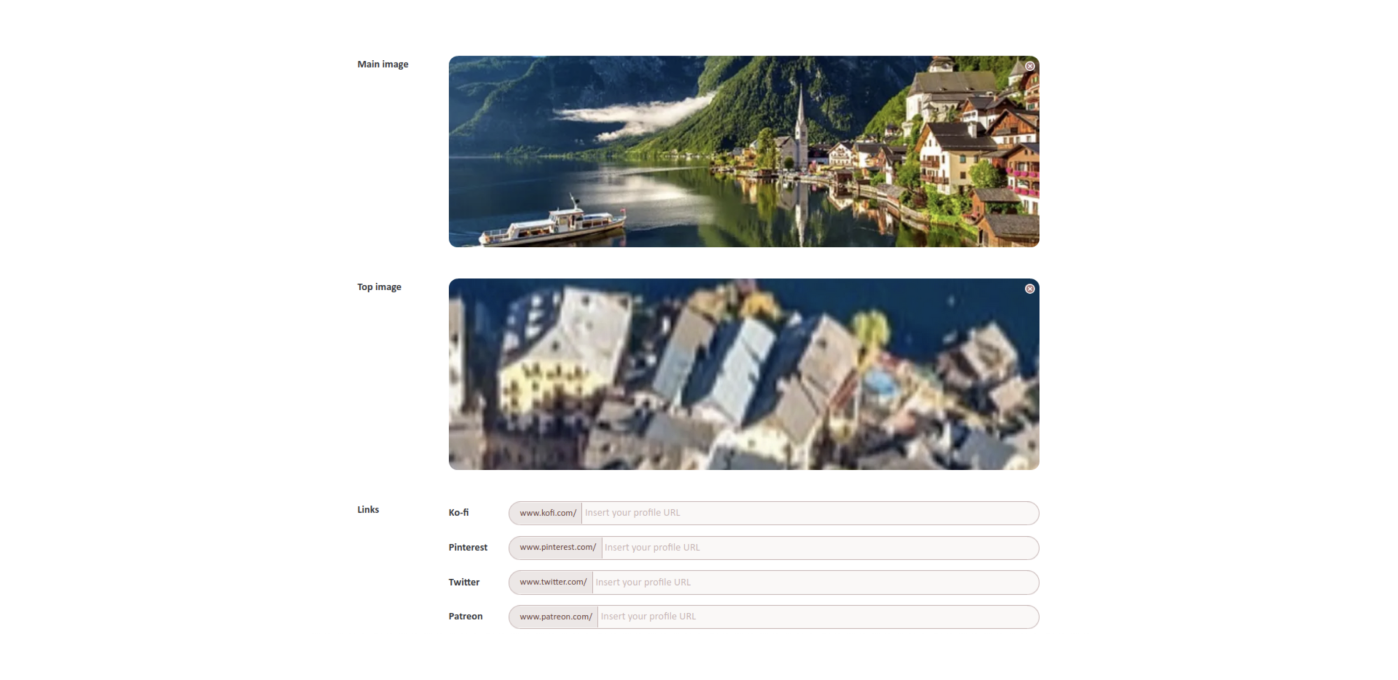
Main Image
This is a big image (best size: 1600x1080 px) that will appear very visibly in your gallery and in the search results in the home page. You can put a piece that is particularly representative of your art style, or one that you really love, or an explanation of your different commission types and their prices.
Top Banner
This is a very long image (best size: 3760x320 px) that will appear on the top of your gallery, to help you personalize the aesthetic feeling of your gallery.
Links
These are the other places where people can find you online. They will appear on your gallery under the “You can find me also on” tag. If you want us to add a link website, let us know at [email protected].
On the right of the settings page, there is a column with the following elements:
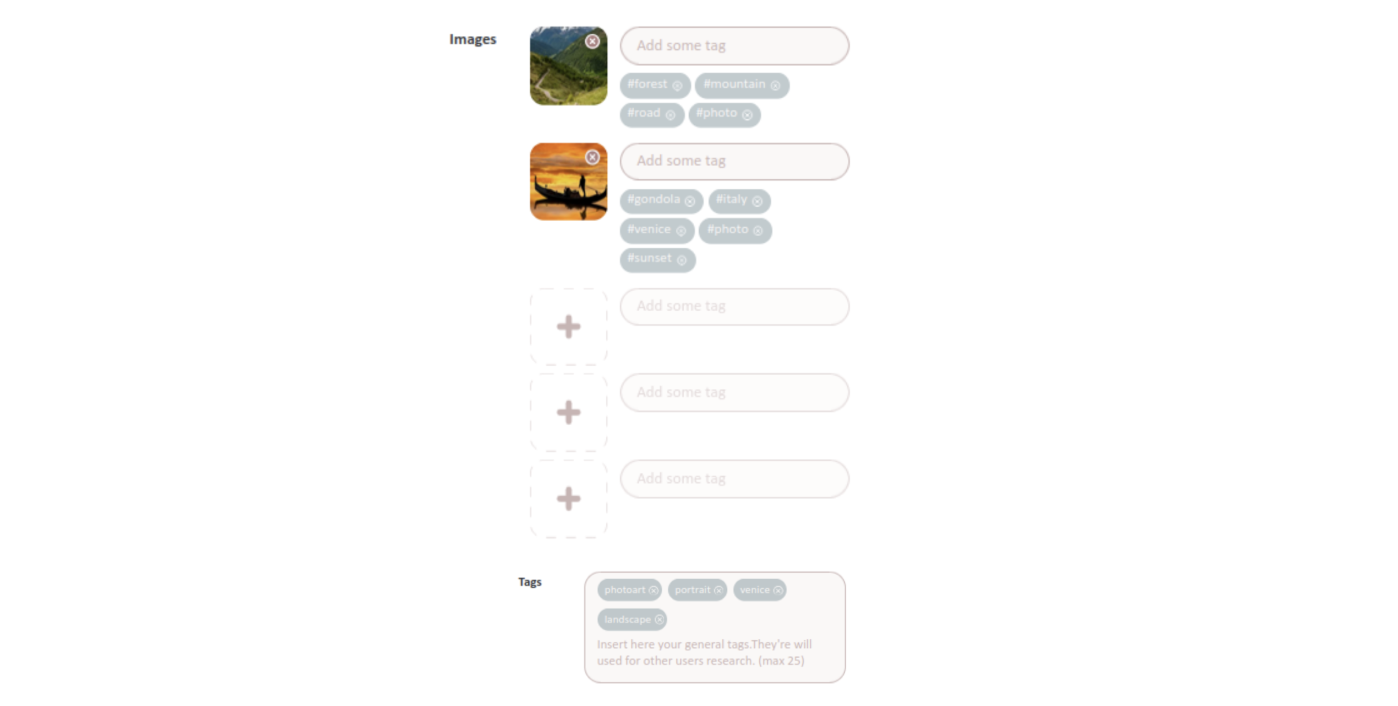
Images
Here you can add up to 9 other images showcasing your art. They will appear in your gallery and visitors will be able to zoom on them. For each image, you can add up to 5 tags describing the image. These will be also used to decide whether to show your page in user searches; see “Tags” below.
NOTE:Please remember to add the "NSFW" tag to your NSFW art!
Tags
You can write here up to 25 tags describing your art style and commission types (e.g. “fantasy”, “full body”, “book cover”, “architecture”, etc.). These tags, together with the tags on all your images (see above), will be used to decide whether to show your gallery in the search results in the homepage. So for instance if a user searches the tags “fantasy” and “architecture” and you have both in either your tags or your image tags, your gallery will appear in the search results, while if you don't have either of the tag anywhere, your gallery won't appear in the search results.
Finally, you can find the Terms checkbox at the bottom of the page. Check it to confirm that you have read and accept our terms and conditions, especially the parts concerning artists and galleries. You will have to do it before saving any changes to your gallery.
When you have uploaded your title, bios, tags, images, et cetera, and you are ready to open your gallery, click on the “Save changes” button on the bottom. You can always change your gallery from this page later.
Keep Your Gallery Visible
Your gallery has an expiry date, that you can see just right of the status in the Gallery tab of your Settings.
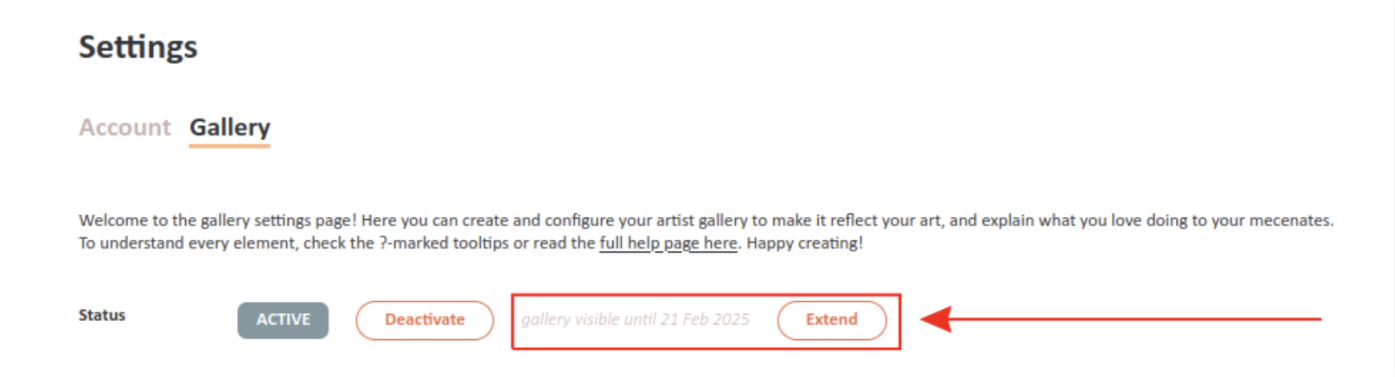
To prevent abandoned galleries from staying online forever and waste mecenates' time, galleries are deactivated after 3 months of their creation. You can extend this expiry date by clicking on the “Extend” button, you will be asked how much denarii you wish to spend to extend your gallery. The maximum amount of denarii you can spend is 20. Paying 1 Denarius gives you 3 months of extension. The denarii quantity you spend is multiplied by 3 months, thus spending 2 will give you 6 months, 3 will give you 9 months etc. See how to acquire Denarii here.
Note that you can also activate and deactivate your gallery to prevent people from seeing it and interacting with it. You can activate your gallery only if it has not expired.
If your gallery has expired, it will be automatically deactivated and you will have to extend the expiration to after the current day before you can reactivate it. Note that the expiry date does not depend on whether the gallery was active or not before.
Propose a Commission
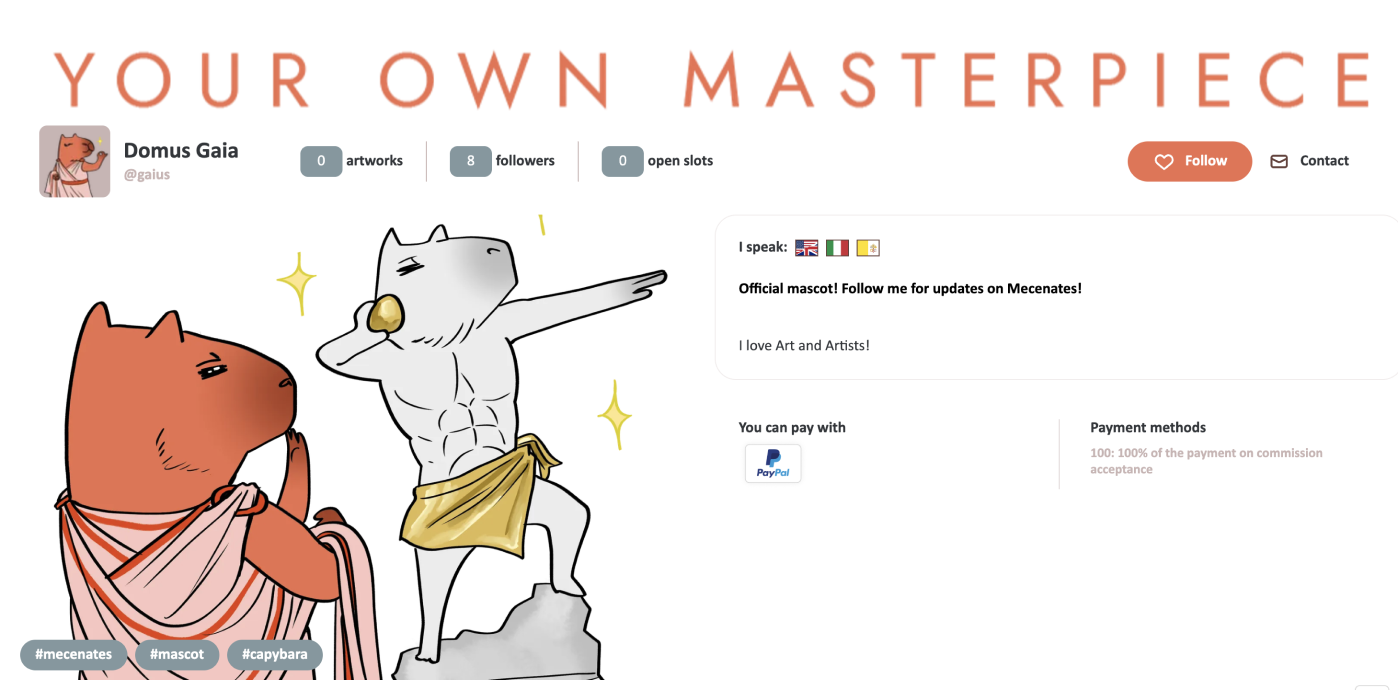
To propose a commission to an artist, click on the Contact button on their gallery.
NOTE:If the user is already blocked by you, you will see the Unblock button instead. You can use this button to remove the block from the user. By doing so, the conversations with them will go back to the Messages tab.
Then click on the appropriate tab.
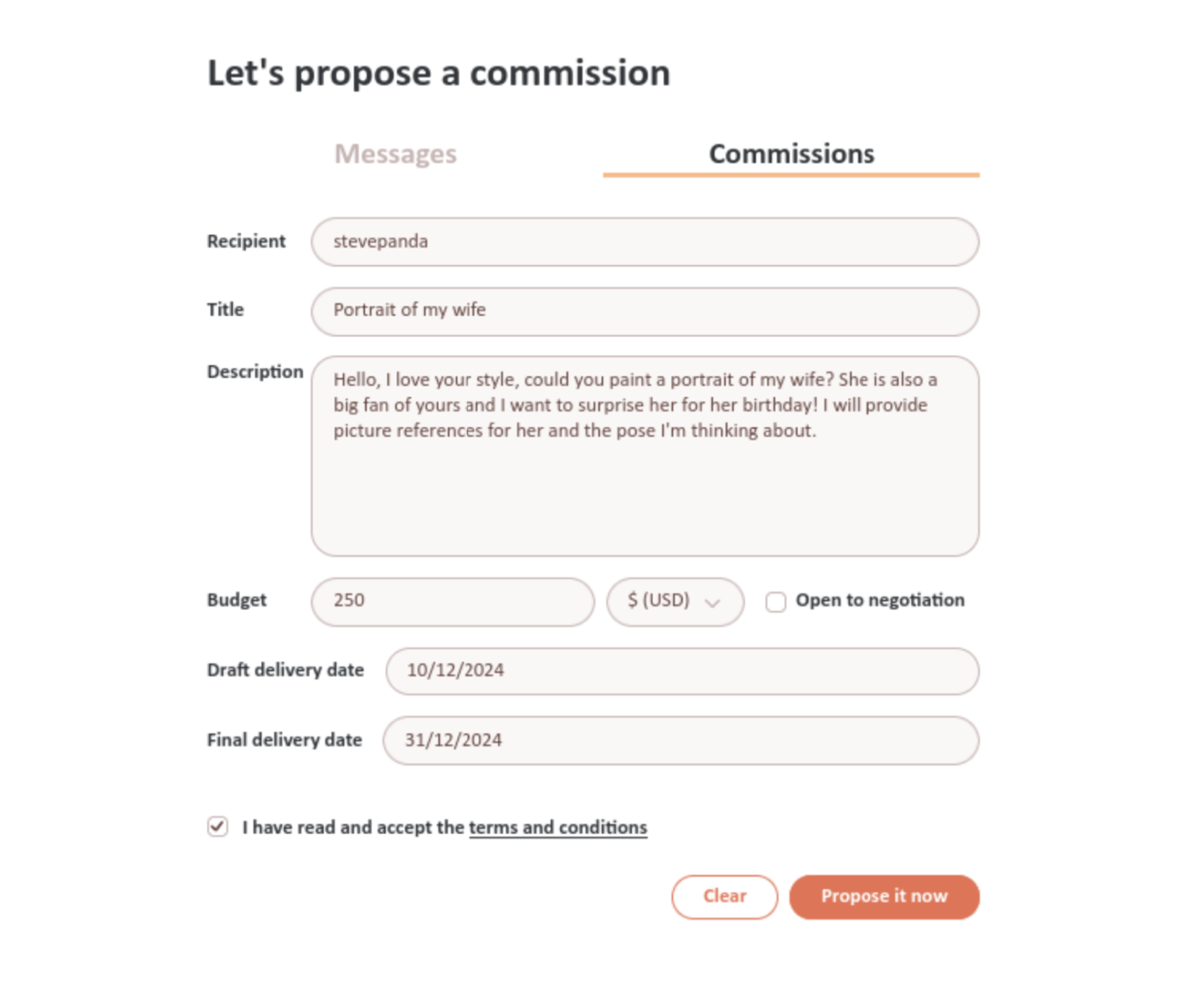
In this form you'll have to provide a few more details:
Title
Here you can give a title to your commission, to summarize what it is about. The artist may change this later to help them better organize their commissions.
Description
Here you can write all about the commission you are proposing. Be clear and give all the details the artist will need to understand what you want, how you'll use it, and why you love the idea of seeing it in the artist's style, but don't worry because there will be time to discuss all the details with the artist later.
Price
Here you can tell the artist how much you expect to spend for the commission. The artist’s gallery will have guidelines for the cost of your commission, according to its complexity. You can also use the drop-down menu to decide the currency. We are expanding the supported currencies, if in doubt set the price to US dollars. You can check the “Open to negotiation” box to signal to the artist that you are not strict about the price. If you have no idea about what the price should be, just put it at 0$ and check “Open to negotiation”, and you can discuss it with the artist later.
Draft Delivery Date
This is the date when you need the commission to be in draft form. The meaning of this changes according to the medium and type of artwork, but ideally it means that by this date the artist has shown you what the final artwork will look like and you have accepted it. If you are not sure about the draft date, pick an estimate: it can be changed later.
Final Delivery Date
This is the date when you need the commission to be completed and delivered. If you are not sure about the draft date, pick an estimate: it can be changed later.
Click on the “Propose it now” button to send the commission proposal to the artist!
The commission will appear under the Commissions tab in your and the artist's Message Board.
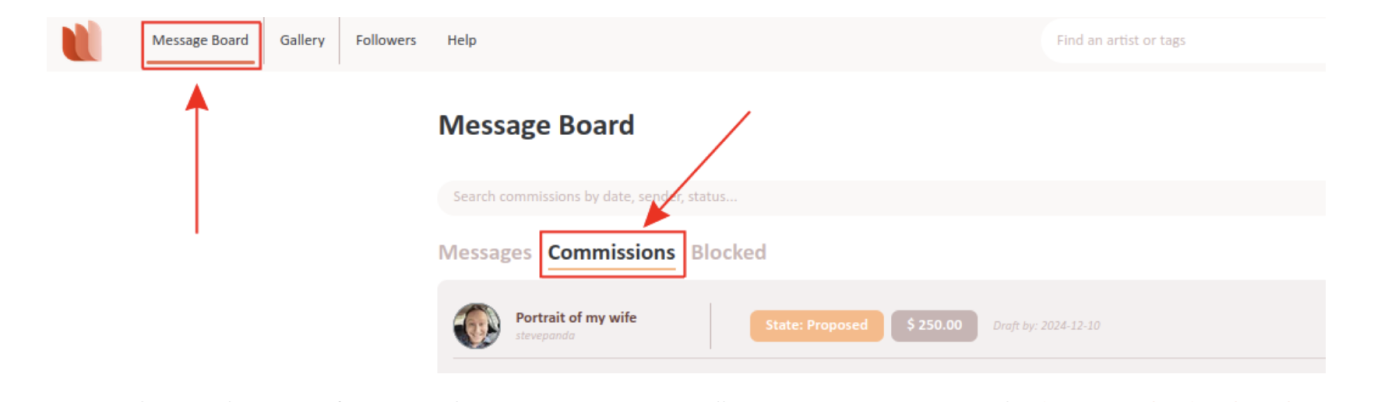
Congratulations, this is your first step to becoming a mecenate! Follow up on your commission by discussing the details with the artist and confirming it.
Discuss & Accept Commissions
Both messages and commissions will appear in your Message Board. To access the Message Board, click on the “Message Board” button on the left of the top bar:

In the Message Board there are three tabs: Messages, Commissions, and Blocked. Let’s analyse the commissions tab.
Commissions Tab
The Commissions tab includes all your commission-related conversations, whether active or archived.
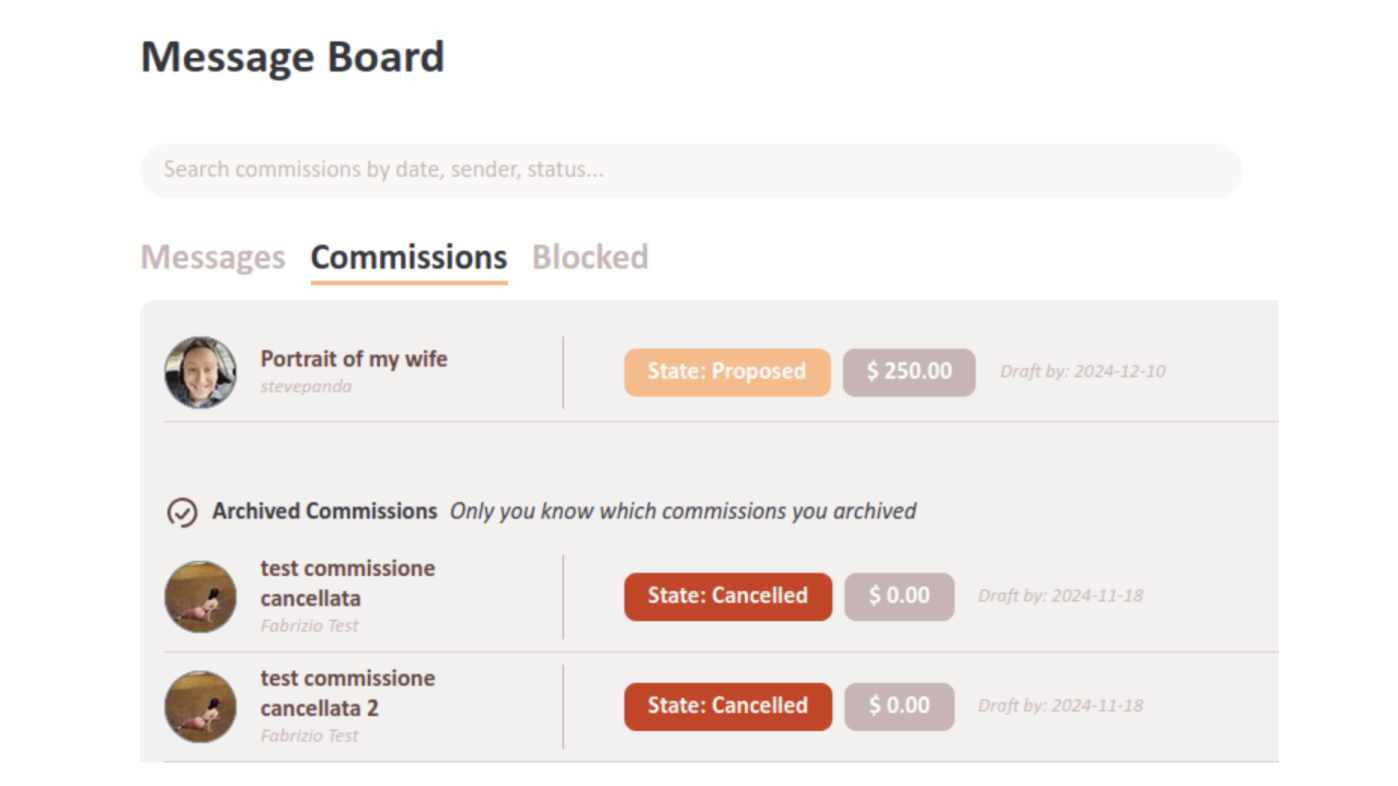
For each commission you can see the commission's title, state, cost, deadlines, and the other user involved (the artist if you are the mecenate for the commission, and vice versa).
Clicking on the row of a commission opens the commission conversation page:
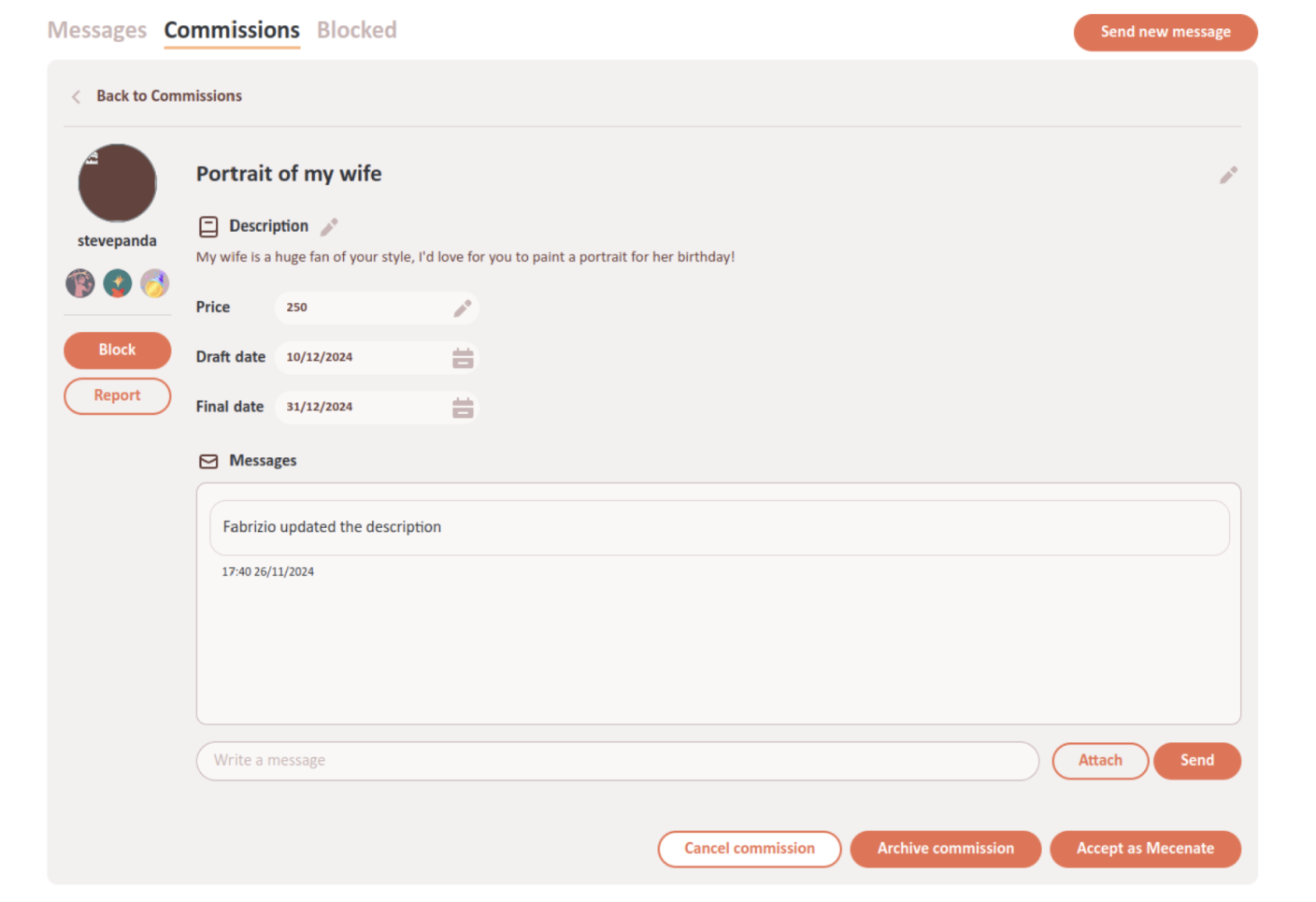
The commission conversation page has the same information and buttons than the normal conversation page, but it also has some fields on the top with the commission's Title, Description, Price, Draft date, and Final date.
Use this conversation to agree with the artist about all the details of the commission, so that they can create it exactly as you want it!
Both you and the artist are able to change the commission's details as long as the commission is not accepted by both of you. Every time someone does so, it will be recorded in the conversation with a special message:
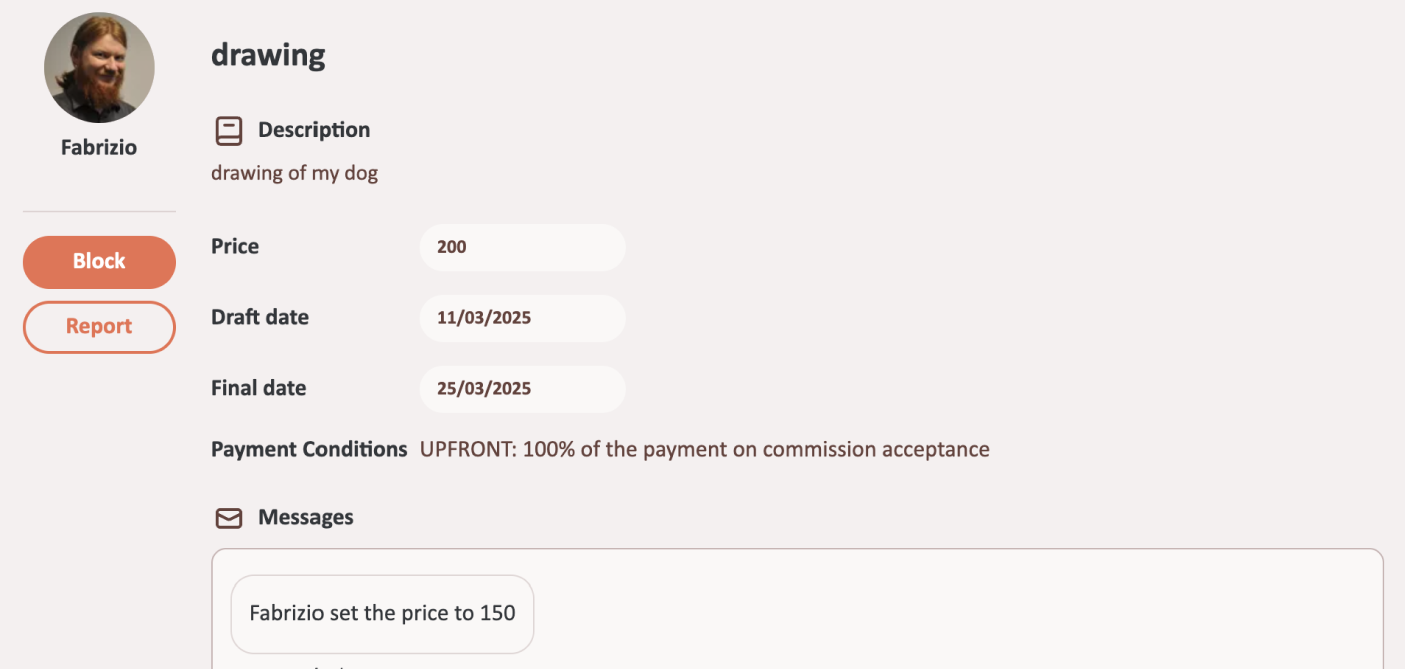
You can also use the “Attach” button to attach images to the conversation, such as references that help the artist understand your commission.
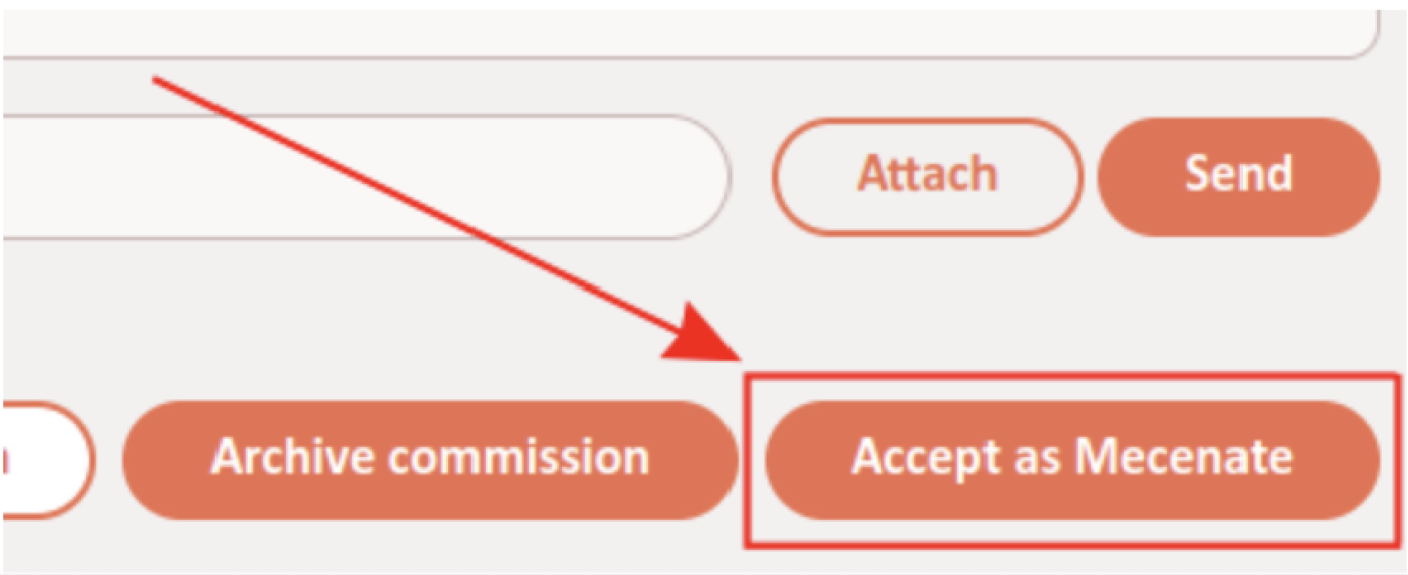
When you and the artist have agreed on all the details of the commission, you'll need to make it official by clicking on the “Accept as Mecenate” button on the bottom right.
A small window will open up summarizing the details of the commission so you can check them, and reminding you that after the commission is accepted you will be able to write a review for the commission on the artist's gallery.
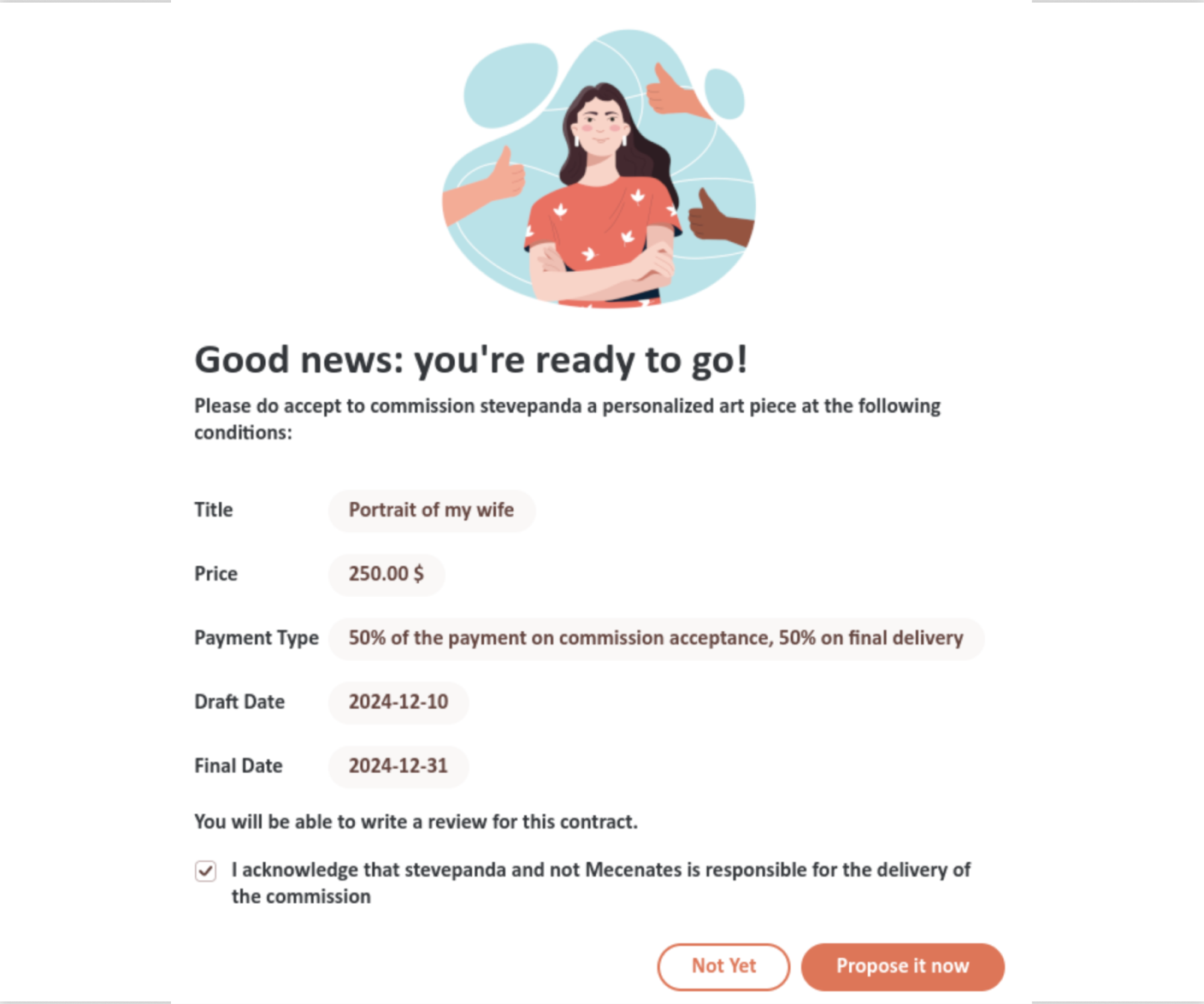
NOTE:Finally, there is a checkbox to confirm that you acknowledge that the artist, and not our website, is responsible for delivering the artwork! While we do our best to connect artists and mecenates and make sure they are professional and accountable, sadly we cannot guarantee that every commission will be delivered perfectly. If something goes wrong, feel free to write so in your review!
Now you are ready to make the commission official by clicking on the “Propose it now” button.
After you accept the commission, the artist will have to do the same on their part. Until they do so, you will have a “Revoke acceptance as Mecenate” button on the bottom right of the commission conversation that allows you to revoke the commission (meaning you can still change details and will have to accept it again). Also, if you or the artist changes any of the commission details before the artist accepts the commission, the commission will be automatically revoked and you will have to accept it again.
If the artist agrees to do the commission but forgets to accept it on their side, remind them, otherwise the commission will not count towards their artwork count and you will not be able towrite a review for it!
If you accept the commission and the artist then accepts it without it being revoked, congratulations! Your commission is finalized, and the artist will get to work!
When the commission is completed you can also archive it to help you track with commissions are open and which are done.
After a commission is accepted, you can also leave a review for it to speak about your experience and rate the artist. The review will appear on the artist's gallery.
Archive Commissions
You can decide at any time to archive a commission by clicking on the “Archive commission” button at the bottom of the commission conversation:
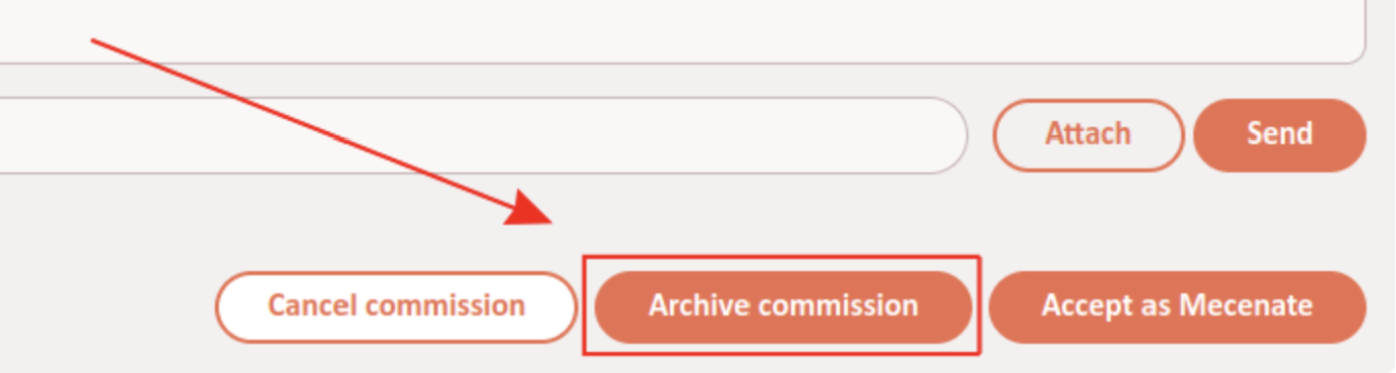
This will make the commission appear under the “Archived Commissions” in the Commissions tab in your Message Board. Only you know which commissions you have archived:
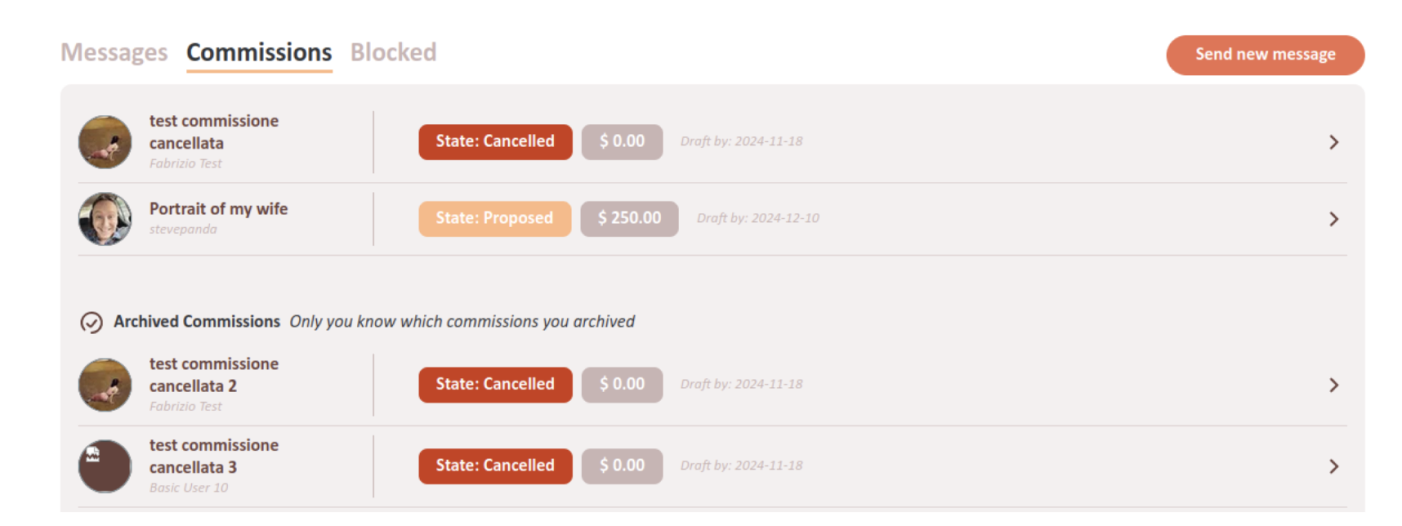
This changes nothing about the commission but helps you track which are still open and which are already completed.
Archiving is tracked separately between artist and mecenate, meaning that the commission can be archived for the one but not for the other.
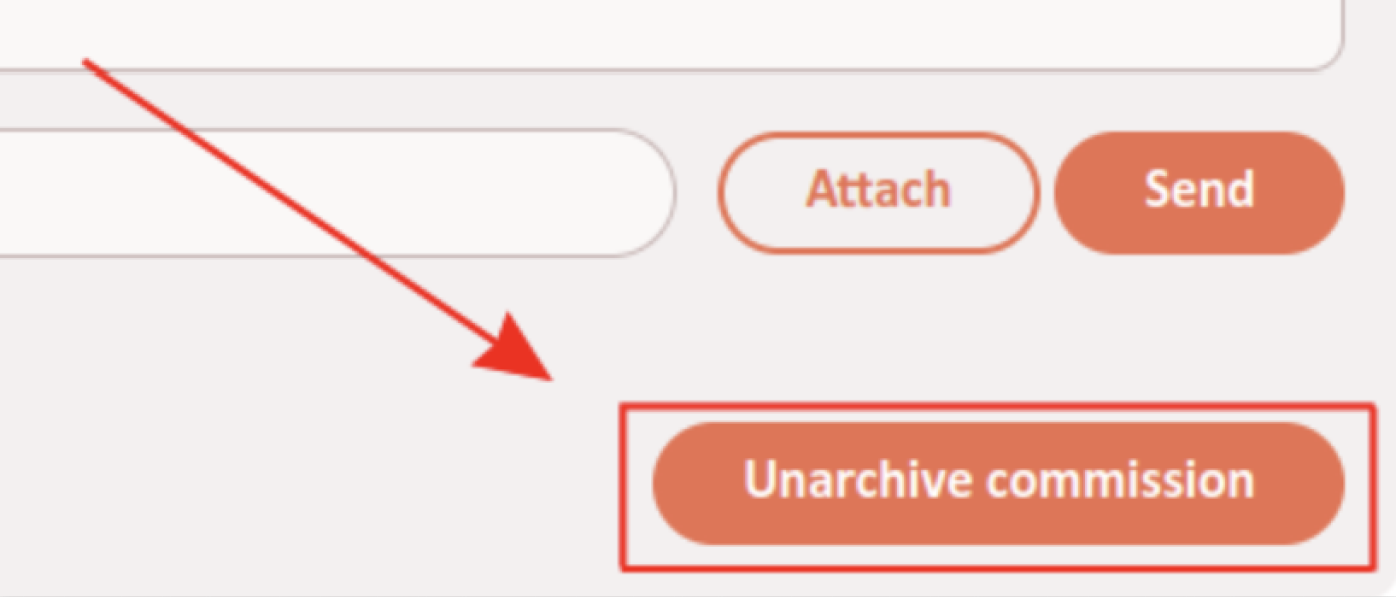
If you change your mind and want to unarchive a commission, open its conversation and click on the “Unarchive commission” button at the bottom of the conversation. The commission will move back above the “Archived Commissions” in the Commissions tab.
Answer Commission Proposals
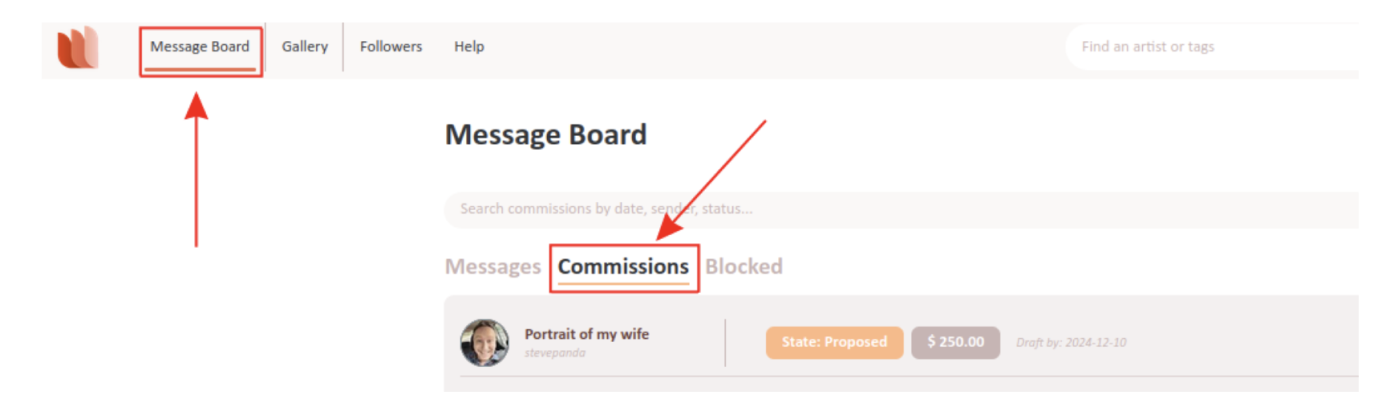
After a mecenate sends you, an artist, a commission proposal, the proposal will appear in your Message Board under the Commissions tab:
NOTE:The mecenate has to be the first to accept the commission proposal, THEN you will be able to accept it as an artist. Please familiarize with the procedure on the mecenate's side so you can help them if things are unclear.
After the mecenate has accepted the details of the commission, you will see the button “Accept as Artist”. Click on it to see the form summarizing the details of the commission:
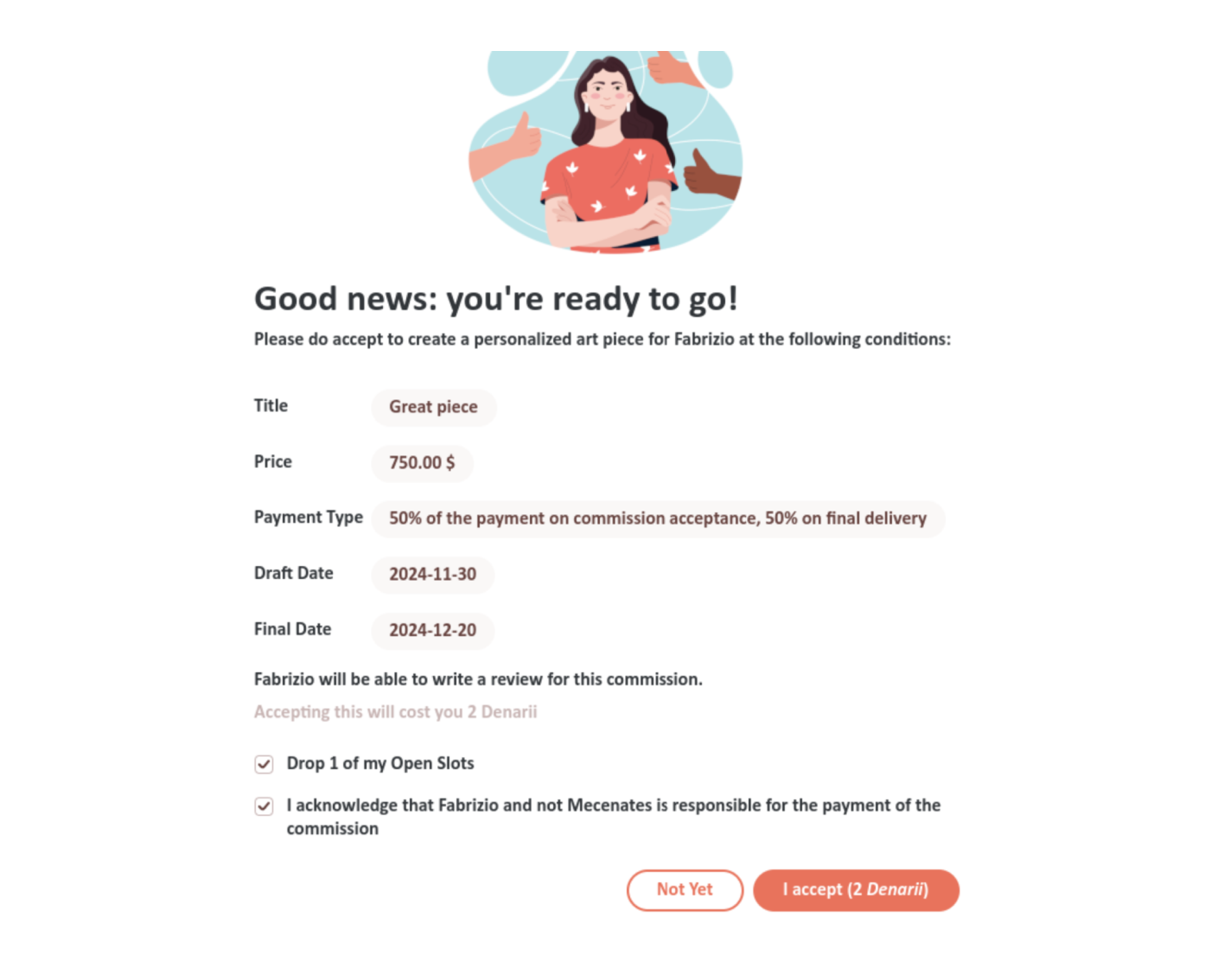
IMPORTANT:Make sure that everything is correct! If not, click on “Not yet” and you'll be able to go back to the commission conversation to fix the details that are wrong.
Close Commissions
Check this box if you want to close your commissions when you accept this one: your commission status will be set to “Commissions closed” and mecenates will not be able to send you new proposals until you open your commissions again from your Gallery Settings.
I acknowledge that [the mecenate] and not Mecenates is responsible for the payment of the commission
Please check this checkbox to confirm that you understand this . Finally, click on “I accept” to accept the commission.
Note that on the “I accept” button you will see the cost in Denarii to accept the commission as artist (mecenates don't spend Denarii, only artists do). To click the button, you will have to have enough Denarii to spend. If you don't have enough, you will be redirected to the page to buy more Denarii. Note you can do that at any time.
The cost in Denarii depends on the final price of the commission converted into US dollars (USD) at the day's ECB rate: if the price is in another currency, the USD equivalent is what counts, as follows:
| Commission price in US Dollars | Cost in Denarii |
|---|---|
| From $0 to $24.99 | 0 |
| From $25 to $49.99 | 1 |
| From $50 to $74.99 | 2 |
| From $75 to $99.99 | 3 |
| From $100 to $149.99 | 4 |
| From $150 to $199.99 | 5 |
| From $200 to $249.99 | 6 |
| From $250 to $324.99 | 7 |
| From $325 to $399.99 | 8 |
| From $400 to $474.99 | 9 |
| From $475 to $549.99 | 10 |
| From $550 to $649.99 | 11 |
| From $650 to $749.99 | 12 |
| From $750 to $899.99 | 13 |
| From $900 to $1049.99 | 14 |
| From $1050 to $1199.99 | 15 |
| From $1200 to $1599.99 | 16 |
| From $1600 to $1799.99 | 17 |
| From $1800 to $1999.99 | 18 |
| From $2000 to $2249.99 | 19 |
| $2250 and above | 20 |
If the mecenate accepts the commission and either you or them change any of the commission's details before you accept it as artist, the commission will be back to not-accepted and the mecenate will have to accept it again.
IMPORTANT:If the mecenates accept the commission and you work on it without accepting it, we will consider it a way to avoid paying us our Denarii for helping you find a mecenate and will act accordingly, so please don't do that. Remember that we think workers deserve to be paid; this holds for you but it holds for us as well. Also, remember that if you don't accept the commission it will not be counted on your completed work count in your gallery and the mecenate won't be able to leave a review.
When the commission is completed you can also archive it to help you track with commissions are open and which are done.
After a commission is accepted, the mecenate can also leave a review for to speak about their experience and rate you as an artist. The review will appear on your gallery and you will be able to respond to it.
Commission Status
Your commission status tells mecenates whether you are currently available for new commissions. You can set it in the Gallery Settings page, choosing among three options: “Open to commissions” (mecenates will be able to send you commission proposals), “Waitlist Open” (mecenates will be able to send you proposals, but they will see a warning that you will not start working on them right now), and “Commissions closed” (mecenates will not be able to send you proposals).
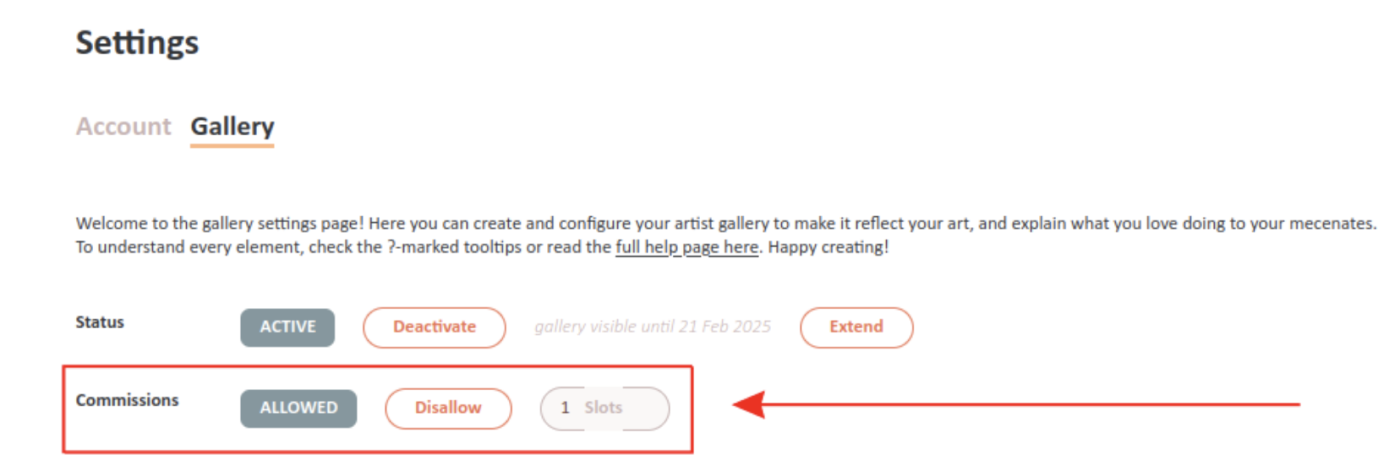
You can change your commission status at any time from the Gallery Settings page, by clicking on the option you want.
Note that your followers with notifications enabled will be notified when your commission availability increases (for example when you switch from “Commissions closed” to “Open to commissions” or “Waitlist Open”), so be mindful not to spam them.
Also note that mecenates looking for artists in the home page search can filter results by commission status, for example to see only artists that are open to commissions or on the waitlist.
When you accept a commission as an artist, you can check the “Close Commissions” box in the acceptance dialog to set your commission status to “Commissions closed” while you work on it.
Reply to Your Reviews
IMPORTANT:After you accept a mecenate's commission, they will be able to leave you a review and rating. The review and rating will appear on your gallery, and your average rating will be updated accordingly.
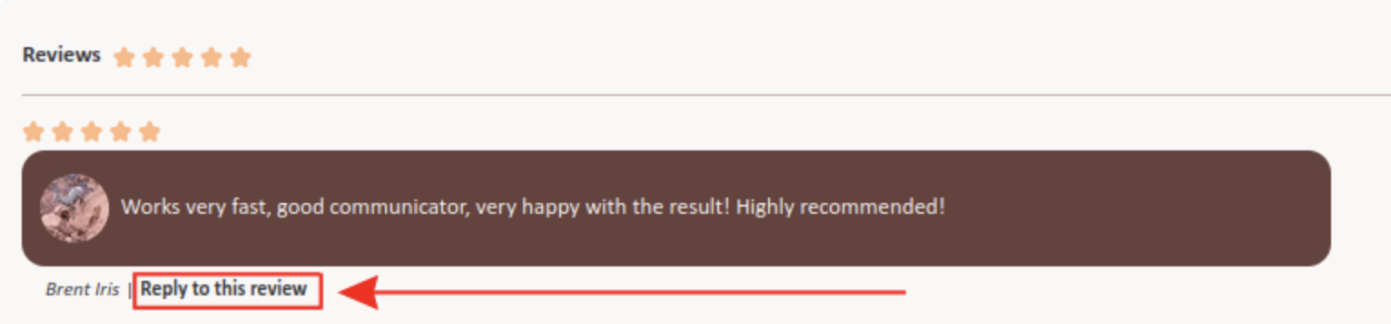
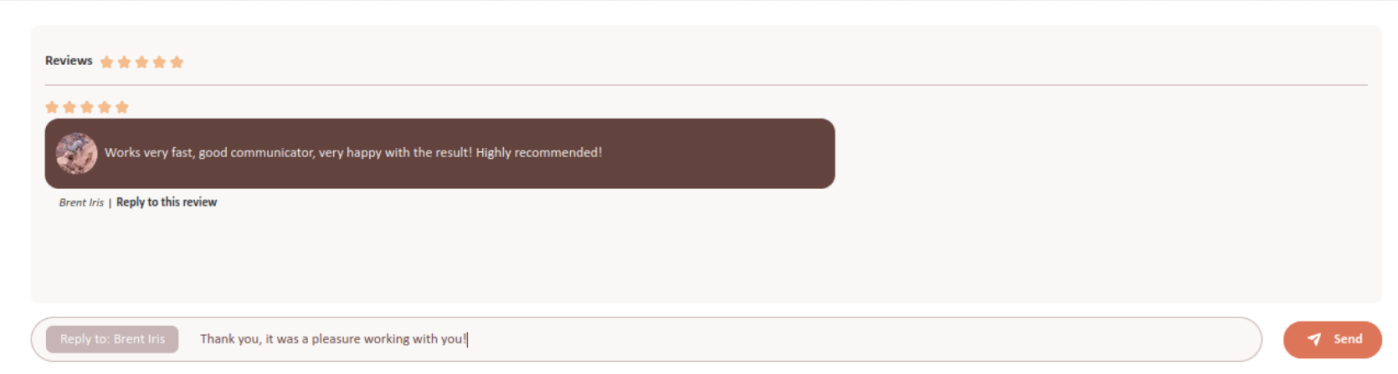
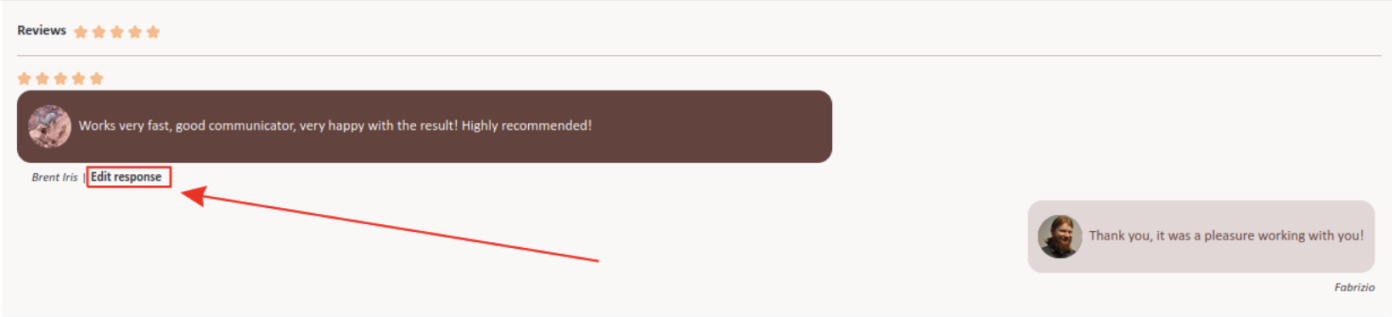
You can answer the mecenates' reviews by clicking "Reply to this review" below the review. It will open a text box below it to write your response. Click on "Send" to post your answer on your gallery.
If you want to edit your response, click on "Edit response" below the review.
Cancellations & Refunds
Mecenates connects artists and mecenates and facilitates the agreement on commission details. Mecenates does not handle payments and is not a party to the payment agreement between you and the artist.
Agree first
Before accepting a commission, agree with the artist on the full terms: price, currency, payment schedule (how much upfront, how much at delivery), draft and final delivery dates, number of revisions, and what happens if either party cancels.
Who pays what, and when
When the Mecenate accepts the terms, they pay the agreed advance directly to the artist, outside the platform. The artist accepts the commission after receiving it and starts working; the balance follows the deadlines you agreed. Mecenates does not handle payments and is not part of the agreement between you.
Archiving
Archiving is personal and changes nothing about the commission: use it to keep track of open and completed work.
Cancellation
A commission can be cancelled by either party at any time; a notification is sent to both. If, after the mecenate accepts the details, you or the artist change any detail before the artist's acceptance, the commission returns to 'not accepted' and the mecenate has to accept it again.
DenariiDenarii spent to accept a commission are not refunded when the commission is cancelled.
Disputes
If you paid the artist and the artwork was not delivered, first contact the artist directly through the commission conversation. If you cannot reach an agreement, write to [email protected] with the commission details: we facilitate the dialogue between the parties and can help clarify the agreed terms. We reply within 2 working days.
Pay for Commissions
The artist's gallery page lists the type of payments that they can accept and their conditions, such as how much of the payment they expect upfront before starting working on a commission.
Our website just facilitates the contact between artist and mecenate and the agreement on the commission details.
Important — Mecenates does not handle payments.
Also:
Mecenates does not handle the delivery of the completed artwork.
You need to discuss all of these details with the artist.
Buy Denarii
IMPORTANT:As long as we are in Early Access, Mecenates is free to use, so you can buy as many Denarii as you want for free! When we deploy the final version and exit from Early Access, the number of Denarii for each artist will be reset to 10.
Denarii are our in-site currency that you can use to buy our services. In practice, you spend Denarii only to keep your gallery visible and to accept commissions from mecenates. Since we don't harvest and sell data or show advertisement, Denarii are the only way we use to keep our website running, so thank you for supporting us!
Note that Denarii are not a cryptocurrency and they cannot be sold, traded, or exchanged with other users!
You can see how many Denarii you have at the top right of the page, to the right of your picture, and buy more Denarii by clicking on “buy some!”.

This page will open:
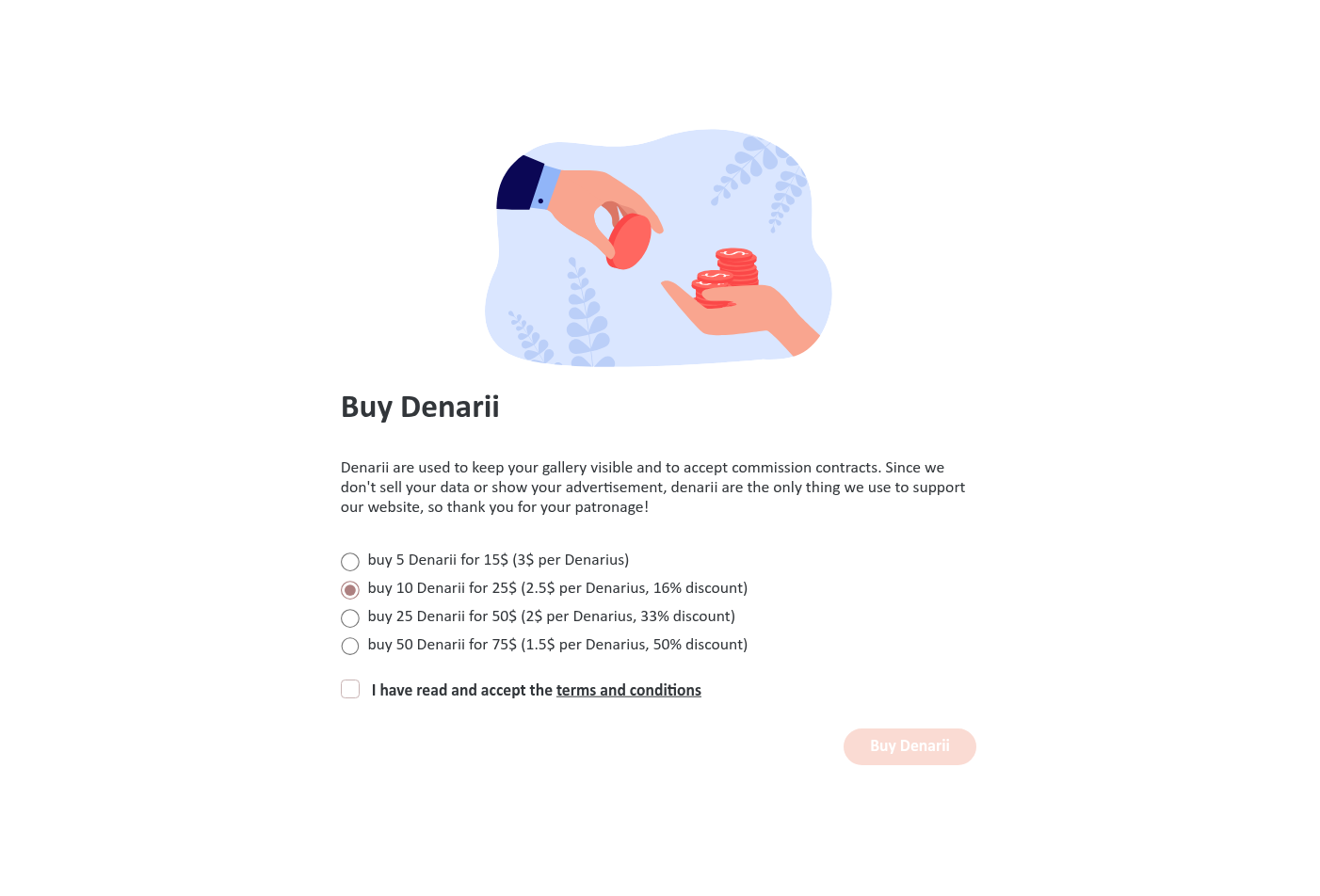
Choose how many Denarii you want to buy; as long as we are on Free Public Early Access, they are free! Check the “I have read and accept the terms and conditions” to confirm that you did so, then click on the “Buy Denarii” button.
See Costs & Denarii for the full commission price table.
Costs & Denarii
Denarii are Mecenates' in-app currency. They are not a cryptocurrency: they have no monetary value, cannot be sold, traded or exchanged with other users, and can only be used to buy services inside the website.
Who spends Denarii
Only artists spend Denarii. Mecenates (art supporters) never spend them.
- Accepting a commission: the cost depends on the final price of the commission converted into USD at the day's ECB rate, as in the table below.
- Keeping your gallery visible: a gallery expires 3 months after its creation. Paying 1 Denarius extends it by 3 months; the maximum you can spend in a single extension is 20 Denarii (60 months).
- Buying Denarii: during Free Public Early Access, Denarii are free. When the final version launches, they will cost money and every account will be reset to 10 Denarii.
- Only artists purchase and spend Denarii: clients do not pay fees and do not purchase Denarii.
Cost to accept a commission:
| Commission price (USD) | Cost in Denarii |
|---|---|
| From $0 to $24.99 | 0 |
| From $25 to $49.99 | 1 |
| From $50 to $74.99 | 2 |
| From $75 to $99.99 | 3 |
| From $100 to $149.99 | 4 |
| From $150 to $199.99 | 5 |
| From $200 to $249.99 | 6 |
| From $250 to $324.99 | 7 |
| From $325 to $399.99 | 8 |
| From $400 to $474.99 | 9 |
| From $475 to $549.99 | 10 |
| From $550 to $649.99 | 11 |
| From $650 to $749.99 | 12 |
| From $750 to $899.99 | 13 |
| From $900 to $1049.99 | 14 |
| From $1050 to $1199.99 | 15 |
| From $1200 to $1599.99 | 16 |
| From $1600 to $1799.99 | 17 |
| From $1800 to $1999.99 | 18 |
| From $2000 to $2249.99 | 19 |
| $2250 and above | 20 |
You can see your Denarii balance at the top right of the page, next to your picture. If you do not have enough Denarii to accept a commission, you will be redirected to the page where you can buy more.
Contact Support
If you want to contact us, click on the “Contact us” button at the bottom left of the page or send us an email at [email protected].
If you need help or support, write us at [email protected] explaining what we can do for you.

Report Content
If you want to report messages, reviews, pictures, text, or other content that violates our terms and conditions, write us at [email protected] and explain what is the content (be as accurate as possible, including if possible the exact URL) and why you think it violates our terms and conditions.
We speak Italian and English, and we'll use a translator for any other language.
Disputes & Troubleshooting
Most questions can be solved in order: check the relevant guide, contact the other party in the conversation, then write to support.
Payment or delivery problem
The artist did not deliver / the mecenate did not pay: reopen the commission conversation and agree on a solution. Mecenates is not a party to the payment, but we can help clarify the agreed terms. If there is no agreement, contact [email protected] with the commission details and the timeline.
Review dispute
You disagree with a review: reply publicly below the review, or write to the artist in the commission conversation. Reviews are removed only when they violate our policies, as detailed in the Terms and Conditions.
Block and Report
Blocking a user prevents them from contacting you and moves the conversation to the Blocked tab. Reporting sends the content to our team for review.
Technical problems
You forgot your password, your email does not arrive, or an error appears: follow the dedicated guides in this Help Center; if the issue persists, write to [email protected] describing the steps you took, what you expected, and what happened instead.
We reply in Italian and English; for other languages we use a translation service. Response time: 2 working days. Write to [email protected].
Content Policy
Mecenates is a community for original art and commissions. By publishing content you confirm that you own the rights to it or that you are authorised to share it.
Originality
Publish only your own work. Do not upload artwork you did not create, copies of other artists' works, or images you do not have the right to use.
NSFW
Tag your explicit artwork as NSFW. Galleries with the NSFW tag are hidden by default from the homepage and search; this filter is active by default and can be disabled in the viewer's settings.
Prohibited content
Do not use the platform to share content that is illegal, harassing, hateful, or that violates the rights of others. If you see content that violates these rules, use the Report function or write to [email protected] specifying the exact URL and the reason for the report.
Consequences
Violations are handled in progressive steps, as detailed in the Terms and Conditions: content that violates the rules may be removed, accounts may be temporarily suspended for up to 30 days, and repeated or serious violations may lead to the permanent deletion of the account.
Copyright infringement
If you believe your work has been posted without authorisation, contact [email protected] with evidence of authorship and the link to the content.